Features
Three features use undocumented Anthropic APIs
The usage panel, the model pickers, and archiving on claude.ai call endpoints the claude CLI uses for itself and doesn't document, on the CLI's own login. They can change or break with any CLI release; each is built to fail quietly when that happens. Details, and the CLI internals the rest of the app reads, are in How It Works.
Sidebar
- Every session under
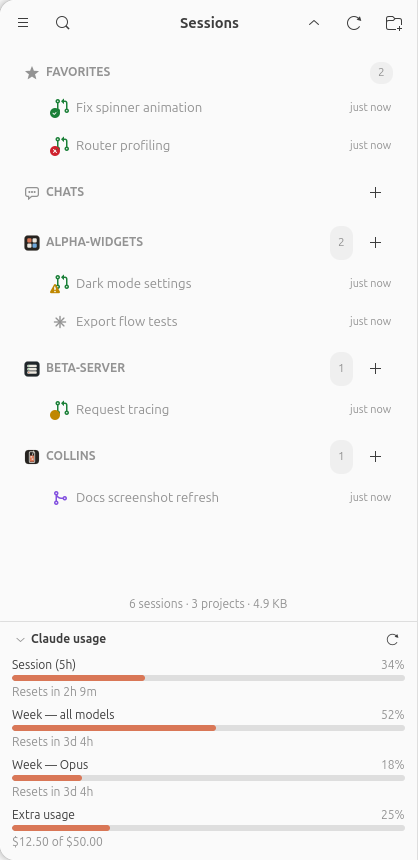
~/.claude/projects/, grouped by project. Click a project header to start a new session there; the strip left of its title — icon included, shown as a caret under the pointer — folds and unfolds the group, as do ←/→ on a focused header (plus a collapse-all/expand-all toggle). Which projects are expanded is remembered across restarts, and dragging a project header reorders the projects — the order is yours and persists. - A Favorites section pinned on top — star any session to move it there.
- Compact single-line rows: name, relative time, status — with an optional second line for the project folder path. Within a project, sessions sort by creation time, newest first, so rows don't jump around. Pointing at a row swaps its timestamp for its actions: archive on every row, plus stop and background on sessions with a tab open.
- Aggregated pull request status on every session: a mark ahead of the title reads a session's PRs into one glyph — their state, plus whatever needs attention most (failed checks, conflicts, unanswered comments, all green). Clicking jumps to the session's tab and its newest PR's page; right-clicking lists every PR with its actions.
- Custom project icons: a project that ships a
project-icon.svgin its root directory wears it in the sidebar in place of the generic folder icon — commit one and everyone who opens the project in Collins gets it. Generate Icon, in a project header's right-click menu, has Claude design one from what's in the folder — previewed at full size and at the 16px the sidebar actually uses, regenerable with an adjustment ("make it blue") until it's right; Save writes the file to the project root. The dialog starts on the Icon generation model preference, which is None by default: it opens waiting for you to pick a model from its drop-down and click Generate. With a model set, it generates the moment it opens. - Repository upkeep from the project header: the right-click menu's Git pull pulls the project folder's checkout, and Checkout main (or whatever the remote calls its trunk) switches it back to the default branch — offered only while some other branch is checked out, with git's own refusal (local changes, a branch held by a worktree) shown in an error dialog.
- Live updates — new sessions appear the moment they're created, via a filesystem watch, and existing rows update in place without jumping around. A just-started session shows a "New Thread" placeholder row until the agent writes its transcript. The header's refresh button re-reads the list and every pull request on demand, and wears the same barber pole as the rows while any session works.
- Search the list from the header's magnifier: type, and only the matching sessions — and the projects holding them — stay on screen. It ships unbound; give it a chord in Keyboard Bindings if you want one.
Ctrl+K's switcher is the one-jump version of the same thing. - Add a project with the sidebar header's folder button. Open folder… picks a directory already on disk; answer the trust prompt once, and it gets a header of its own with no sessions in it yet. A project emptied by archiving can be kept the same way; Remove project from sidebar in the header's menu is what finally drops one.
- Clone a repository as a project: the same button's Clone repository… opens a dialog whose one box does two things. Typed words filter every repository
ghlists for your account (your own, the ones you collaborate on, and everything your organizations show you; newest push first, fuzzy on the name, then the description), and the best match is picked, so Enter clones it. A pasted address (https://…,ssh://…,git@host:path) or anowner/repothat isn't in the list is cloned as typed. Clone into starts at Preferences → General → Clone repositories into (your home folder by default) and can be changed for this one clone. Under it the dialog prints the full destination path (the folder git names after the repository) and whether git will accept it there. It refuses a folder that already has something in it, and says so when a missing parent will be created. GitHub repositories clone throughgh repo clone, so your protocol preference and gh's login apply; anything else runsgit clone. Neither can stop to prompt for a password: a missing login fails with git's own message in the dialog. Cancel stops a clone mid-way. A finished clone passes the same trust prompt as Open folder… and lands in the sidebar as a project. Withoutghthe list is empty, and addresses still work. - A Claude usage panel under the session list: your subscription limits — the 5-hour session window, weekly limits, extra-usage credits — as progress bars with reset countdowns, read from the
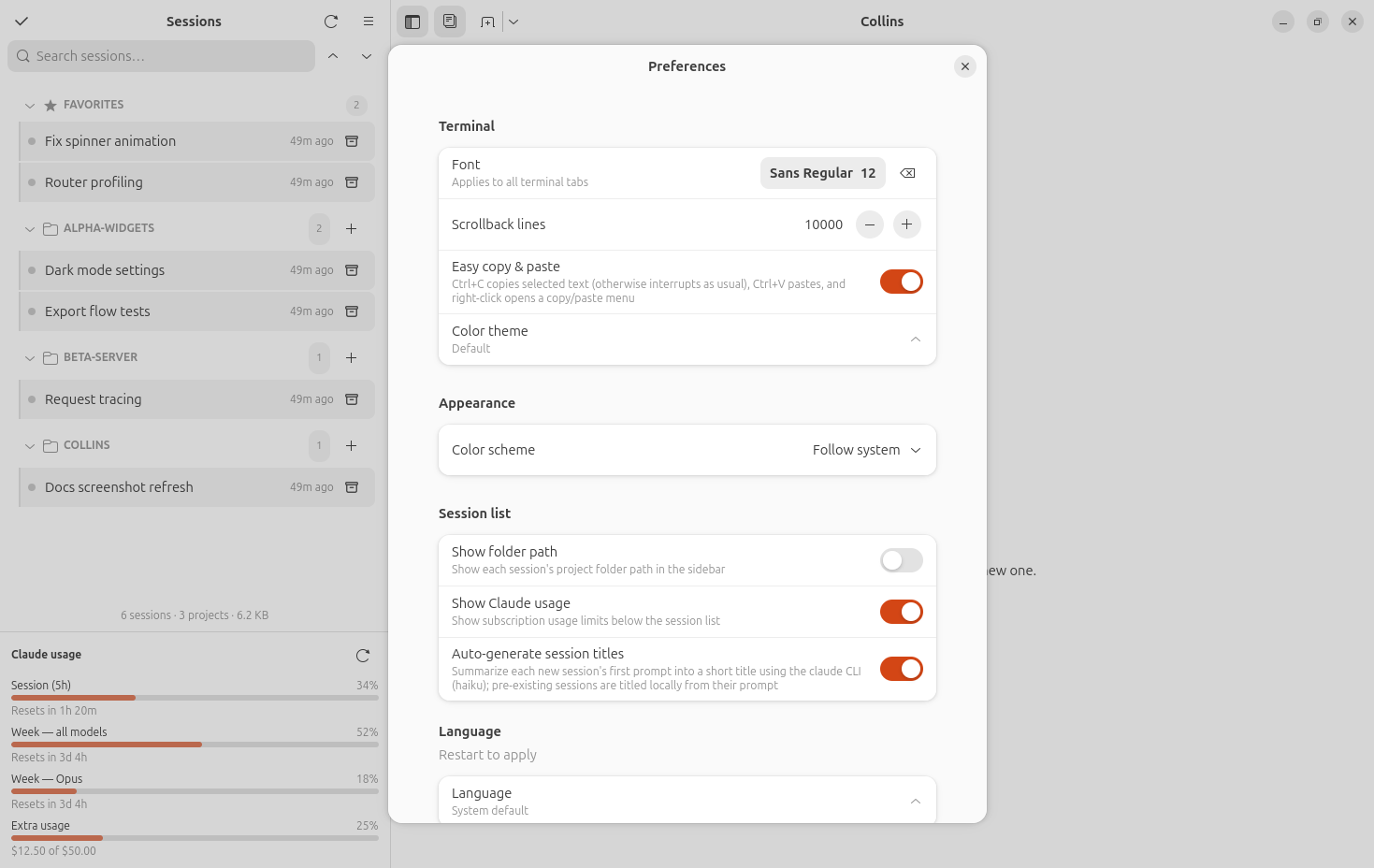
claudeCLI's own login and refreshed every 10 minutes. A fetch that fails says why in the endpoint's own words (HTTP 429: Rate limited. Please try again later.) and tries again a minute later, and any fetch restarts the clock. Its heading folds the bars away, its refresh button asks again on the spot, and Preferences (Show Claude usage) removes it.
Auto-generated titles
Unnamed sessions get a title generated for them: sessions that already existed when the app launched are titled locally (the first words of the initial prompt — the model never sees your backlog), while sessions created while the app runs have their first prompt summarized to five words or fewer by a headless claude -p run — the same CLI and login the whole app is based on, no extra credentials needed. A prompt that only points at a pull request ("review PR 183") gets that PR's title fetched with gh and handed to the model as quoted, untrusted context, so the title reads as words instead of a number.
Titles are persisted so each is generated only once; right-click → Regenerate name re-runs the model for one session, and the menu item names the model it will run (Regenerate name (Haiku 4.5)). The Session title model preference has a None option that turns the model runs off (it replaced the Auto-generate session titles switch): under None sessions keep the free local title, and Regenerate name still works, on the automatic default. A manual rename always wins. Claude names sessions for itself too — the Follow Claude's own session names preference (on by default) makes the sidebar adopt those names as they land in the transcript.
Quick switcher
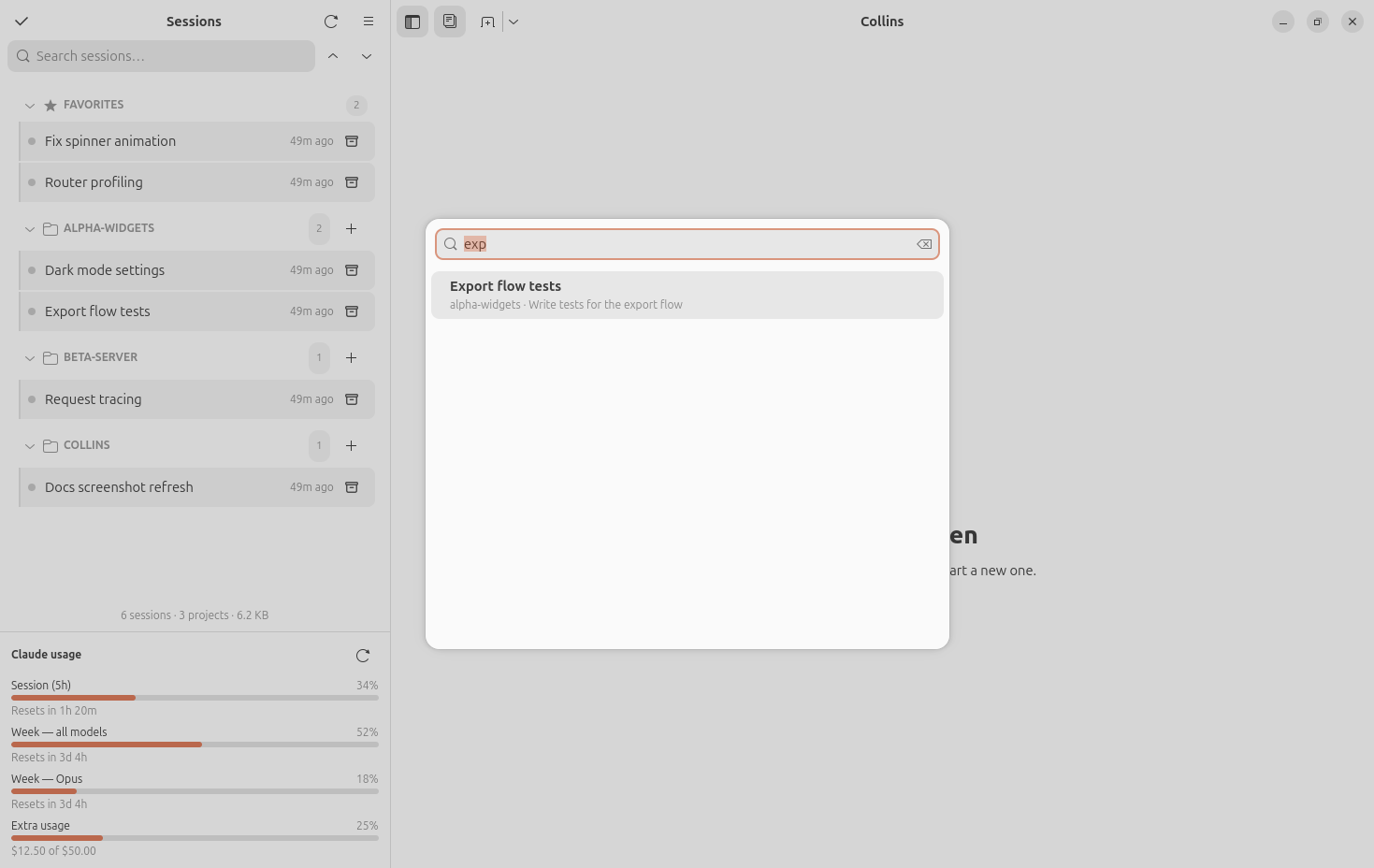
Press Ctrl+K anywhere to fuzzy-jump to a session — arrow keys move, Enter opens, Esc closes.
Sessions & terminals
- Every session tab runs on the service that the split into a headless service and a client is building towards. The terminal you see has no child of its own: the shell runs on a pty the in-app service holds, the service answers the CLI's terminal queries and keeps a screen model of record, and the terminal is painted from the service's stream — a fresh terminal attaching to a running session is redrawn from that model, scrollback and colours included. The terminal panel's shells (Ctrl+J, and the sandboxed shell) run on the service too: their saved scrollback is written from the service's screen model and painted back ahead of the new shell's prompt, and
read_terminal/run_in_terminalread and type through the service. Quitting Collins ends the sessions. - Clicking a session opens it in an embedded VTE terminal running your
$SHELLwith the agent's resume command (claude --resume <id>) — in the directory the session last worked in (worktree-aware), not just where it started. A session still running detached is re-attached (claude attach) instead of resumed as a copy. Open sessions stay open as you switch between them; the sidebar marks the ones with unread output. - A slim session footer shows the model the session last answered with and the effort level it answered at, the agent's live working directory (click to copy), and the current git branch (⎇ — click to open the git page, right-click to copy), plus the terminal-panel, git-page and editor buttons.
- Footer apps: name any installed application in Preferences → Footer apps and every session's footer grows a button that opens the session's live directory in it — your editor, a file manager, a git GUI. They're stored as desktop-file IDs, so names and icons follow the app. The ones that take a file also line up under the Open In… menu of the git page's files list and of the editor's file tree, to open one file in them — above a Default app row that hands the file to whatever your desktop opens that type with (
xdg-open). - A tab bar under the header is there for anyone who wants it — the header's pages button toggles it, off by default, since the sidebar and the window title are how Collins expects you to move between sessions.
- The model is one click from switching. The footer's model name is a menu: every model your login can use, fetched from the Models API with the CLI's own token, the current one marked. Pick another and the session gets the CLI's
/modelcommand, and the footer and both pickers follow within a moment — Collins reads the CLI's own confirmation of the switch off the transcript, so there is no waiting for the next reply. (A model chosen in the CLI's own/modelpicker still shows up on the next reply, since the CLI prints its name rather than its id.) The same menu sits in the composer's chrome, so you can change model halfway through writing a prompt without losing the draft. (Copying the full model id lives in the menu too.) - So is the effort level. The level beside the model name is a menu of the CLI's effort levels (Low, Medium, High, Extra high, Max), the current one marked; a pick sends
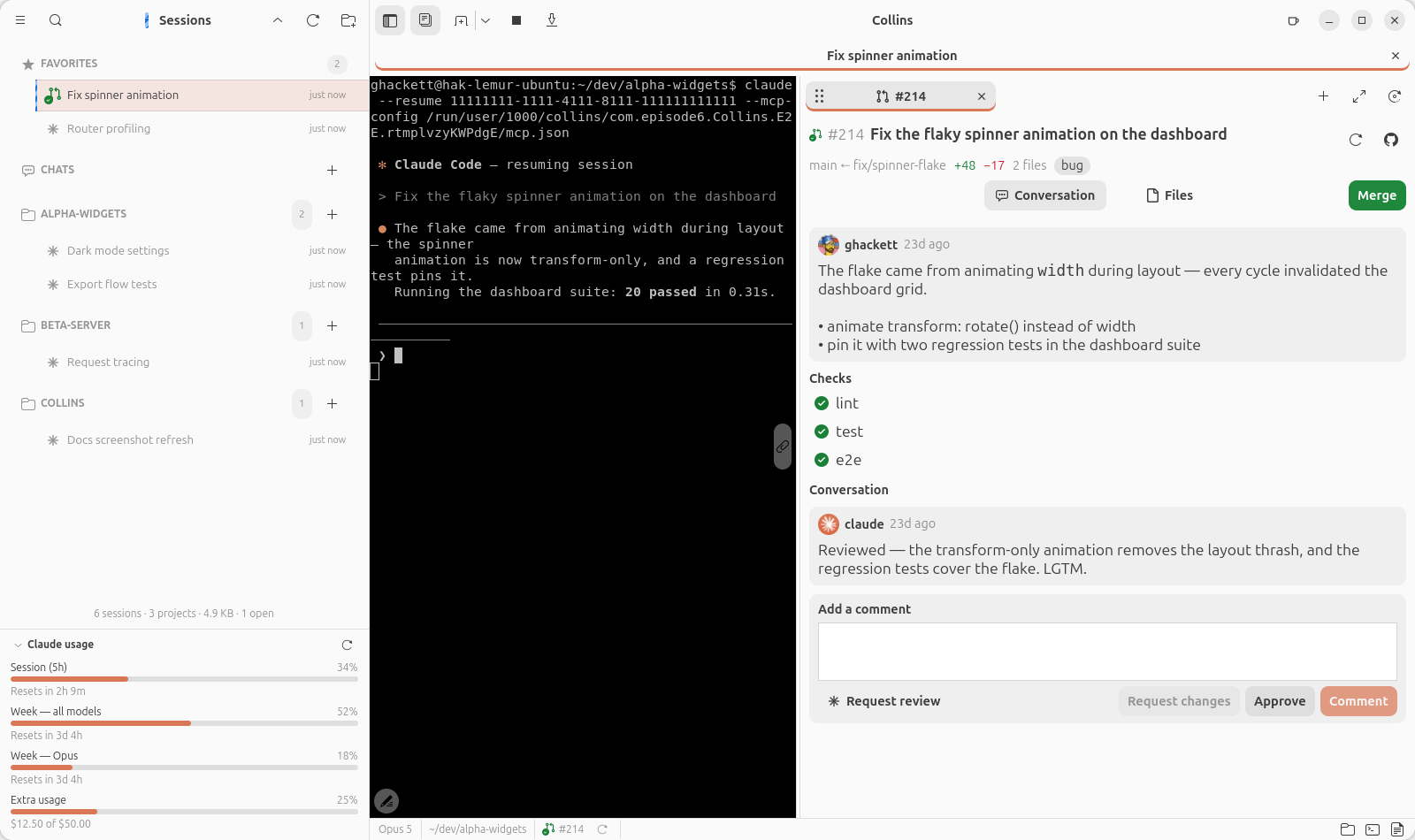
/effort, and the footer follows as soon as the CLI confirms it. Levels the current model can't take — the Models API says which — are greyed out. The same menu sits beside the composer's model button. - Pull request chips trail the branch: one per PR the session has opened, each with its CI or merge mark, and each opening that PR's page beside the session on click — a native view of the description, checks, timeline, and diff, whose Conversation and Files tabs each open their github.com counterpart on a right-click. The description and the checks list each fold behind Show more — the description showing the start of its first paragraph, the checks keeping failing and pending rows on top — and the page carries its own action button: Ready on a draft, Merge or Auto-Merge on an open PR (Disable Auto-Merge once GitHub has it armed). Right-clicking a draft's Ready offers the stops past it: Mark ready & merge (or …when checks pass), Ready & Auto-Merge, and Mark ready, merge & archive session. The caret beside them lists every PR with its title,
F7opens the newest one's page (its tab wears the PR's own mark, so a red build shows on the tab too), and Open new pull requests automatically (Preferences, on by default) opens the page by itself — once per PR — the moment a session picks one up. On a screen where the terminal has already hit its maximum width (Preferences), the page opens in a column of its own, twice as wide as it can be squeezed when the spare room covers that — paid out of the gutter the terminal wasn't using, never out of the terminal itself. - Bodies render as GitHub-flavored markdown. The description, comments, reviews and review threads on the PR page are parsed with markdown-it-py (the
gfm-likepreset) and drawn as blocks: headings in three sizes; nested lists laid out structurally, task lists with ☐ / ☑ glyphs, ordered lists counting from their first number; block quotes behind a bar; horizontal rules; reference-style links; barehttps://andwww.URLs linked;<kbd>,<sub>,<sup>and<br>honoured, every other HTML tag shown escaped, as text; images in place (a linked image is the picture). Tables are grids — the header row bold, columns aligned as the delimiter row asks, cells selectable — that scroll sideways within their own band rather than widening the page; past 50 rows or 8 columns, that much shows and a link leads to the rest on GitHub. A cell that is nothing but images (a before/after pair, one screenshot per column) shows the pictures, scaled to share the panel's width; a table wider than three columns, or a cell of more than three pictures, keeps them as alt-text links. Code is a read-only source view highlighted for the fence's language (python,bash,json,diff,rust… and any other name GtkSourceView knows), wearing the editor's style scheme like the Files view's diffs, a long line scrolling sideways within the block; a right-click copies the whole block, and one past 20 000 characters shows that much and a link to the rest. GitHub references link the way they do on GitHub:#123andowner/repo#123to the issue or PR,@userto the profile, a commit's hex to the commit — into the PR's own repository, on its own host — and a relative link like[guide](docs/guide.md)opens the file at the PR's head commit; a reference inside a code span, or inside a link the author wrote, is left alone. A<details>block is an expander wearing its<summary>(wrapped, cut past 300 characters), collapsed unless the tag saysopen, its contents built the first time it is opened; one with no closing tag shows as text rather than swallowing the rest of the body. Alerts (> [!NOTE],[!TIP],[!IMPORTANT],[!WARNING],[!CAUTION]) are quotes under GitHub's own icon and title for the kind, bar and title in the kind's color. A long description folds to its first paragraph — or the first items of a list, the first rows of a table — behind Show more. Without the parser installed the page falls back to its plainer built-in renderer. - A changed image is shown, not diffed. In the PR page's Files view, a file whose name says image —
.png,.svg,.gif,.jpg,.webp… — renders as the picture itself, on a transparency checkerboard: before beside after for one the PR changed, a single picture for one it adds or deletes, and a click opens either full size. An SVG keeps its patch under the preview (a small one is drawn scaled up, since vector artwork loses nothing by it); a binary image, whose diff only ever said the two files differ, shows the picture alone. The blobs come throughgh, so private repositories and Enterprise hosts work — and Show embedded images (Preferences) turns the whole thing off. - Right-click a chip for what to do with it: mark a draft ready for review, merge it — or arm auto-merge while its checks are still running (merging asks first, until you turn Confirm before merging off) — ask Claude for a review, or open it on GitHub. Four items are sent to the session as a prompt instead: address the CI errors when its CI is red, resolve conflicts when the branch no longer merges, address unresolved comments when someone else has had the last word, and open a pull request when a merged PR leaves uncommitted work in the tree. Those need the session sitting at an empty prompt; where one can't be sent it's greyed out, saying why.
- All of it runs on the GitHub CLI (
gh) — every question asked with it, every action carried out by it. Without it the chips still appear (the numbers come off the transcript) but stay blank, and a launch that findsghmissing or signed out says so — pointing at the install, or at the one login command that fixes it — until you set it up or tick Don't show this again.
- Rename a session, copy its ID, or fork it (
--fork-session) from the right-click menu. Shift+Enter inserts a newline in the agent's prompt, and in-terminal search (Ctrl+Shift+G) covers the scrollback. - Easy copy & paste (on by default): plain
Ctrl+Ccopies whenever text is selected — otherwise it interrupts the agent as usual — plainCtrl+Vpastes, and right-click opens a Copy / Paste / Select All menu. NoCtrl+Shiftfinger-twisting just because it's a terminal; the classicCtrl+Shift+C/Ctrl+Shift+Valways work. - Closing a session asks the agent to exit cleanly (Claude Code's
Ctrl+CCtrl+C, which works from whatever the agent happens to be showing) in the background first — or the dialog offers to background the session instead (/bg), leaving it running detached to re-attach to later. While a session is focused, two header buttons do the same directly, skipping the dialog. Backgrounding is greyed out for the second or two before a brand-new session's id is known — the tooltip says so. - Closing the window doesn't have to end anything. The close-window dialog's third answer, Keep Running (Hide Window), hides the window and leaves every session exactly as it is — panels, scrollback and all. The status icon's Show Collins, a session's notification, or simply launching Collins again brings it back. Where a status icon is present it's the dialog's default answer; the When quitting with running sessions preference can skip the dialog entirely (always ask, exit, background, or hide), and the menu's explicit Quit always really quits.
- The window title names the focused session, and the sidebar is resizable, its width remembered. On the next launch the app opens with no session — or, with Reopen the last session on (Preferences → Session behavior), with the one you had focused — and the window comes back at its last size.
Prompt composer
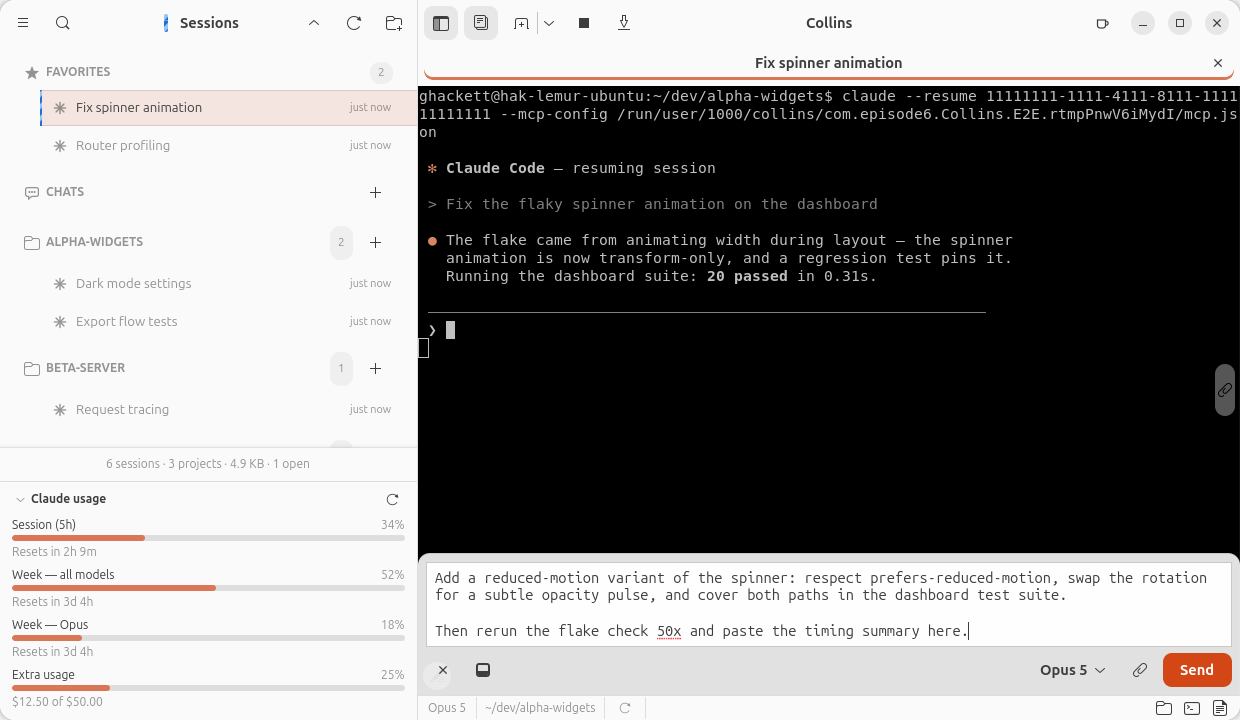
A real text box for writing prompts — multi-line, spell-checked, floating over the agent's terminal — for every prompt that outgrows the CLI's one-line input. And unlike that input box, which dies with the process, it keeps what you haven't sent: a half-written prompt is a draft that belongs to its session, and it is there when you come back to it.
- Start typing and it's there (on by default): type at an agent's empty prompt and the composer opens with what you typed already in it. The CLI's own
/,!,#and@keep their keys, and so do dialogs and menus.Ctrl+.opens it deliberately; pressed again it closes the composer and puts the draft back in the agent's own input box, so nothing you wrote is ever stranded. A semi-transparent composer button on the corner of each agent terminal opens it by mouse. - Drafts wait for you. Whatever is in the composer when you leave stays with the session: close the tab, quit Collins, come back a day later, and the draft is back in the box the next time you open that session's composer — by
Ctrl+., by the button, or by starting to type. Whatever arrives with the open — the keystroke that raised it, text already typed-but-unsent in the CLI's own box — goes in after the draft, and the cursor sits at the end, so you carry on from where the box now ends rather than from where it began. The same holds when the agent has left the terminal under an open composer — a bare shell, where pasting a draft would run it as commands — so closing the composer keeps the draft instead of typing it back. Drafts are saved to disk with the rest of the session's state (~/.config/collins/state.json), never to the agent's transcript, and a draft that has been sent or taken back into the agent's input box is spent — it won't turn up a second time. A new session's first prompt works the same way from the other end: it is written in this composer on the new-chat screen, and until you send it the screen is a Draft row in the sidebar, ready to reopen. - Send on Enter — or flip Enter sends composer text off to make Enter a newline and
Ctrl+Enterthe send.Shift+Enteris always a newline. The box is drawn in the terminal's own font on purpose: the text is about to be terminal text. - Right-click a misspelling for corrections. The menu offers alternatives for the word you clicked, not for wherever the cursor happens to be — turn Right-click aims spell-check off to leave the cursor untouched by a right-click. Spell-check needs libspelling installed (see Getting started); without it the composer is a plain text box.
- Drop or paste images and files straight in. Files land in the prompt as mentions; images get a strip of preview thumbnails above the text (click one to inspect it full-size) and go to the agent with the prompt. Pasting works the same way: an image on the clipboard (a screenshot tool's copy, a browser's Copy image) is saved as a PNG under
~/.cache/collins/dropped-images/— where dropped images go too, pruned after a week — and that copy is what the prompt mentions; files copied in a file manager are mentioned in place. - Floating or docked. The composer floats translucent over the terminal; its dock button turns it into a panel below the terminal instead, where it stays for that session's later visits.
- Model and effort buttons: the composer names the model the session is answering with and the effort level it answers at, and clicking either opens the same switch menu as the footer's — pick a different model or level mid-draft and carry on writing.
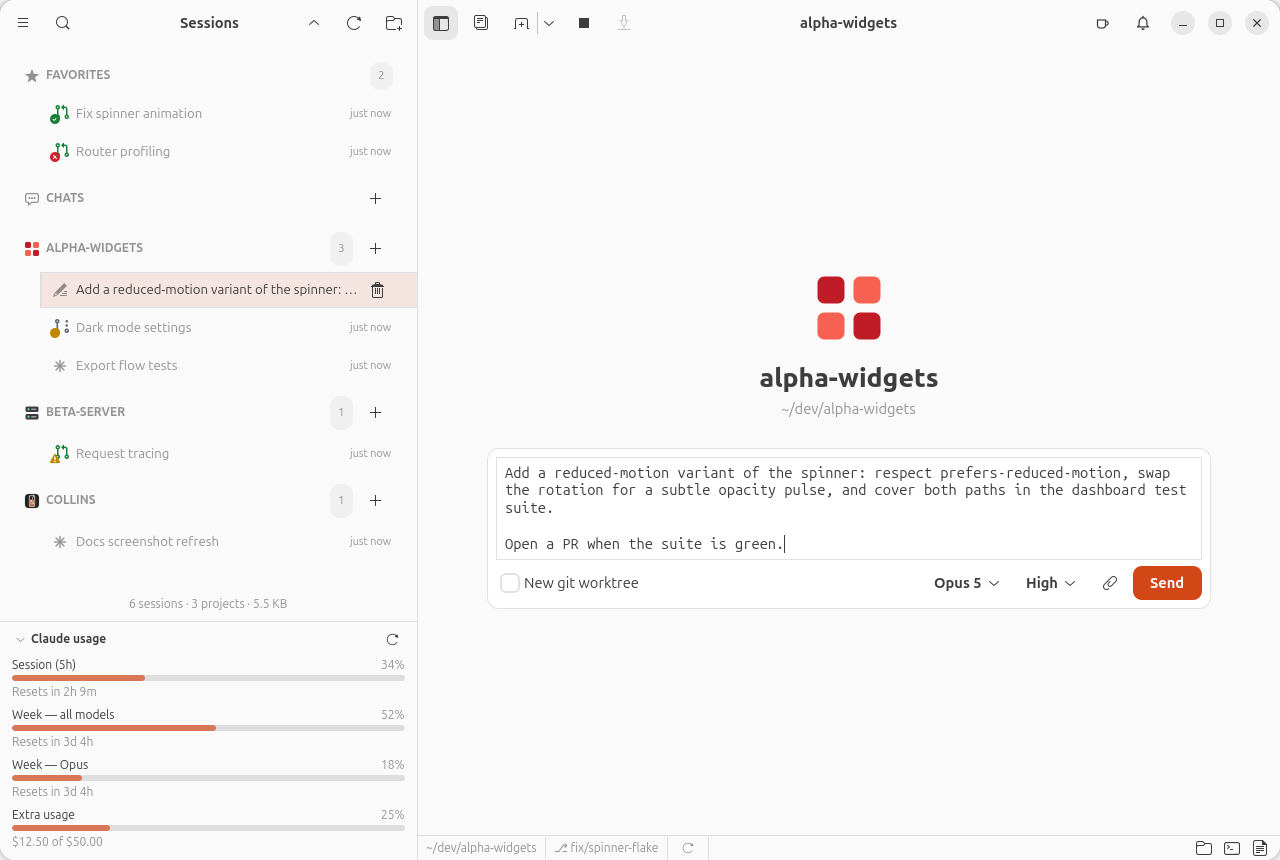
- It's also where a session begins. A new session's first prompt is written in this same composer, on the new-chat screen that stands in for the console until Send — worktree checkbox, model picker and effort picker on its Send row.
Terminal panel
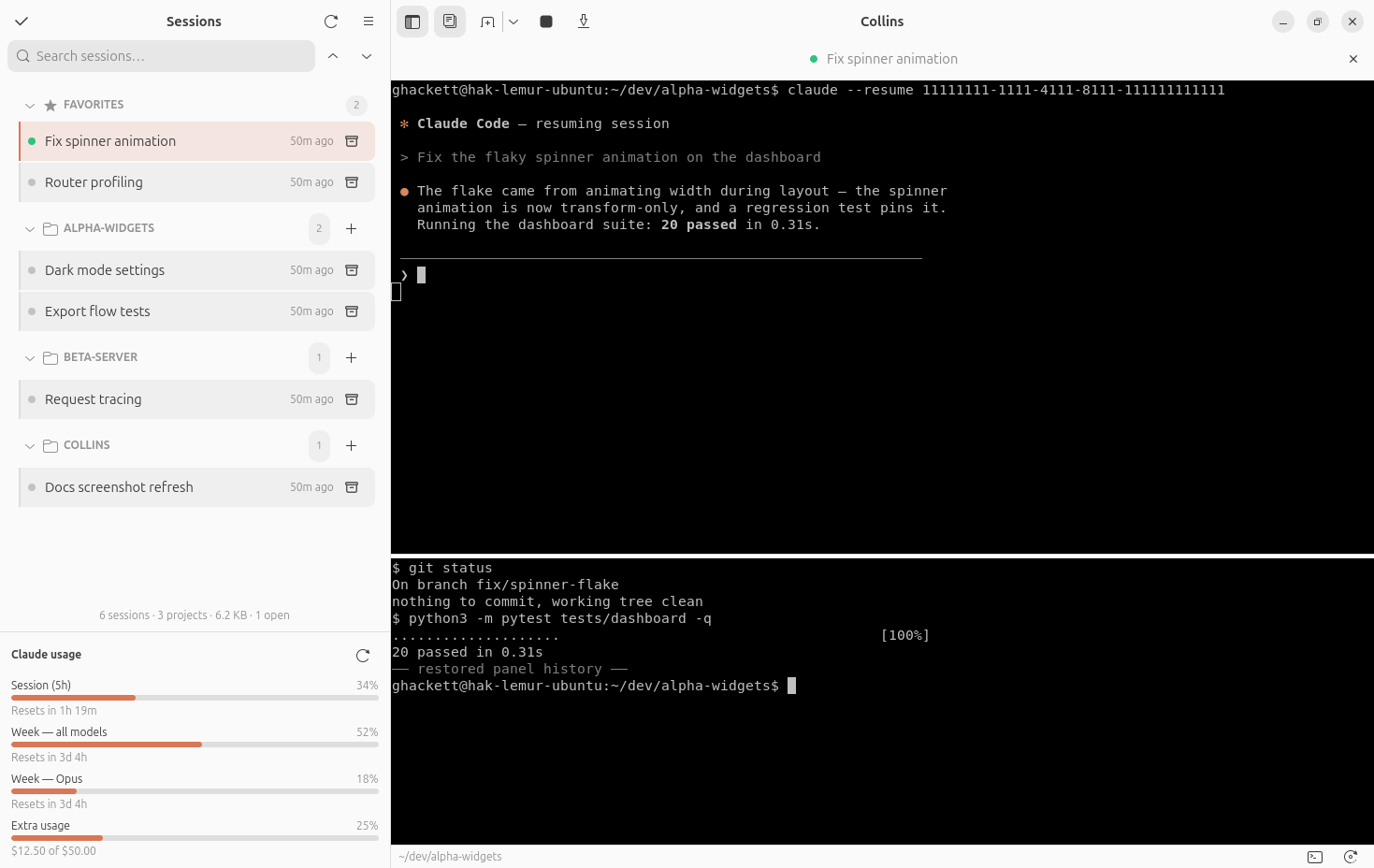
Every session has a second, plain-shell terminal area — no agent auto-launched — below or beside the agent terminal, with tabs of its own:
- Toggle it with
Ctrl+Jor the buttons in the session footer;Ctrl+Shift+Kclears it (screen and saved history). Shells open in the agent's current working directory (worktree-aware). - The tab row's + opens another shell tab; each tab's ✕ closes it, asking first if a command is still running. Typing
exitcloses a tab too, and closing the last one hides the panel. - The rotate button (or
Ctrl+;) sends the tab you're looking at to the panel's other side — below the terminal to beside it, and back. Right-click a panel tab to split (Left / Right / Up / Down) or move it to another strip, so you can keep shells below the terminal and beside it at once. Shells keep running through every move. - The overlay button gives the tab you're looking at the whole tab: it floats over the agent terminal, the other strips and the editor — a shell to read a long build log, a PR page to read a diff — with a restore button (or
Esc) that drops it back where it came from. While it's up it owns the keyboard, so nothing you type lands in the agent's terminal by mistake. - Scrollback persists across restarts, per panel tab — reopen a session and the panel picks up where it left off. Each session remembers its panel's open state, position, and size; the strip that pages dock into (a PR view, the git page, the attachments gallery, a docked composer) remembers a size of its own, kept apart from the shells'.
- Right-click the footer's terminal button to open the agent's live directory in your desktop's own terminal instead, for the times a window of its own beats a panel.
Attachments panel
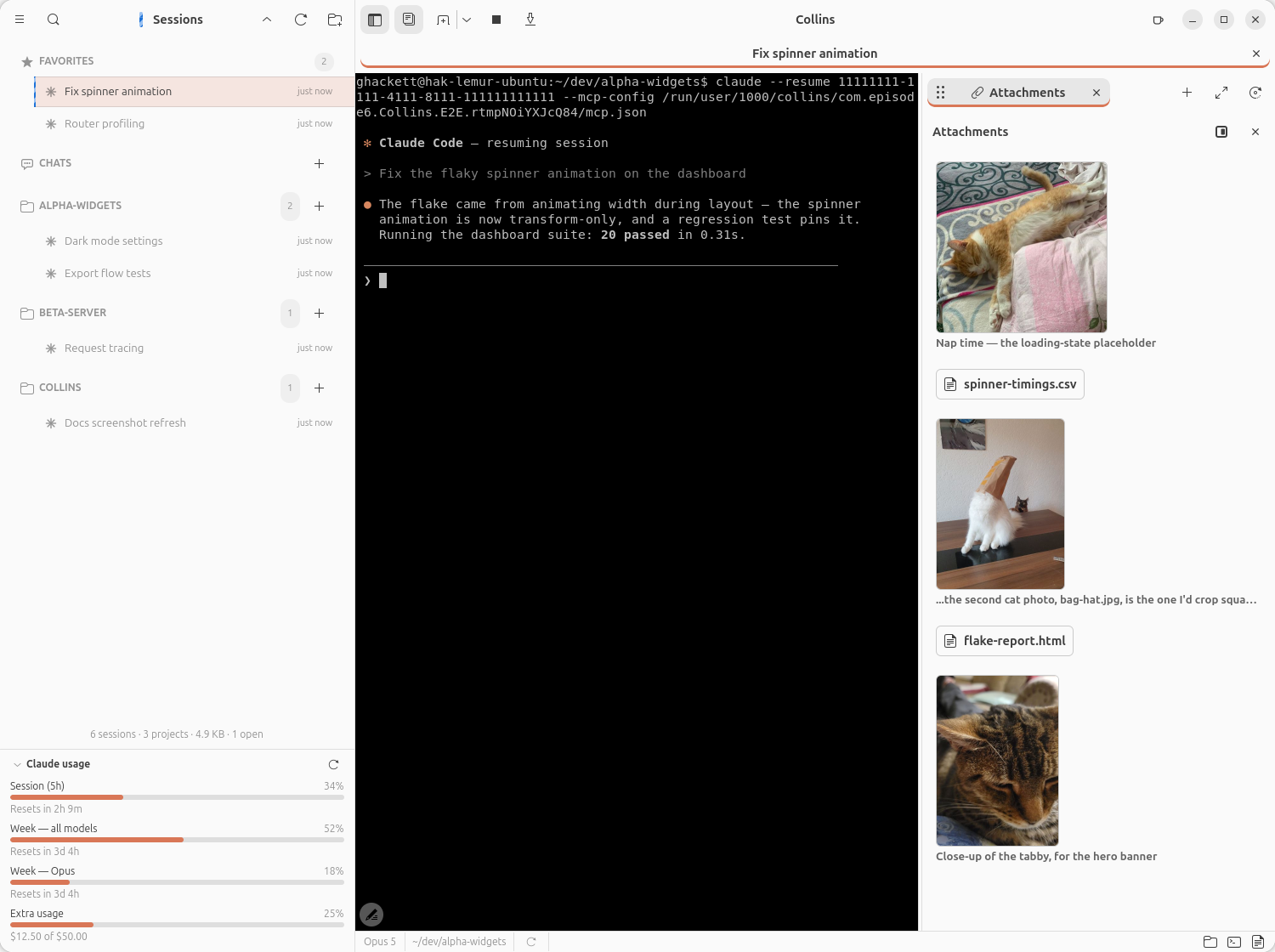
Pictures flow through a session constantly — screenshots the agent takes, images it shows you, files you drag in — and the moment they scroll off the terminal they're gone. The attachments panel keeps them: a per-session gallery of everything the session has shared, on Ctrl+' or the slim handle at the terminal's right edge.
- Every picture, from every source: images the agent shows with
show_image, the ones it mentions by path or URL in its replies, and the files it hands over with the CLI's ownSendUserFiletool — those can be any kind of file, shown as a typed icon with the filename. Captions ride along where there was one; a picture found in prose carries a snippet of the text around it instead. - Reads like a chat: oldest at the top, newest at the bottom. The handle wears a badge when something new has arrived that you haven't looked at.
- Click a picture to open it full-size in the lightbox, where the arrow keys walk the gallery; a file opens in your desktop's default app. Right-click a row for Open With…, Show in Folder, Copy Path, and Remove From List. A file that's no longer on disk stays listed, and says so.
- Floating or docked. The panel slides in over the terminal; its dock button makes it a panel tab beside the terminal instead, where it can be split and moved like any other. It docks itself the first time a session shows a picture, when the window is wide enough to spare the column (Show the attachments panel automatically, in Preferences).
- The list persists per session — reopen a session weeks later and its gallery is exactly as you left it. Forked sessions inherit the original's.
Editor panel
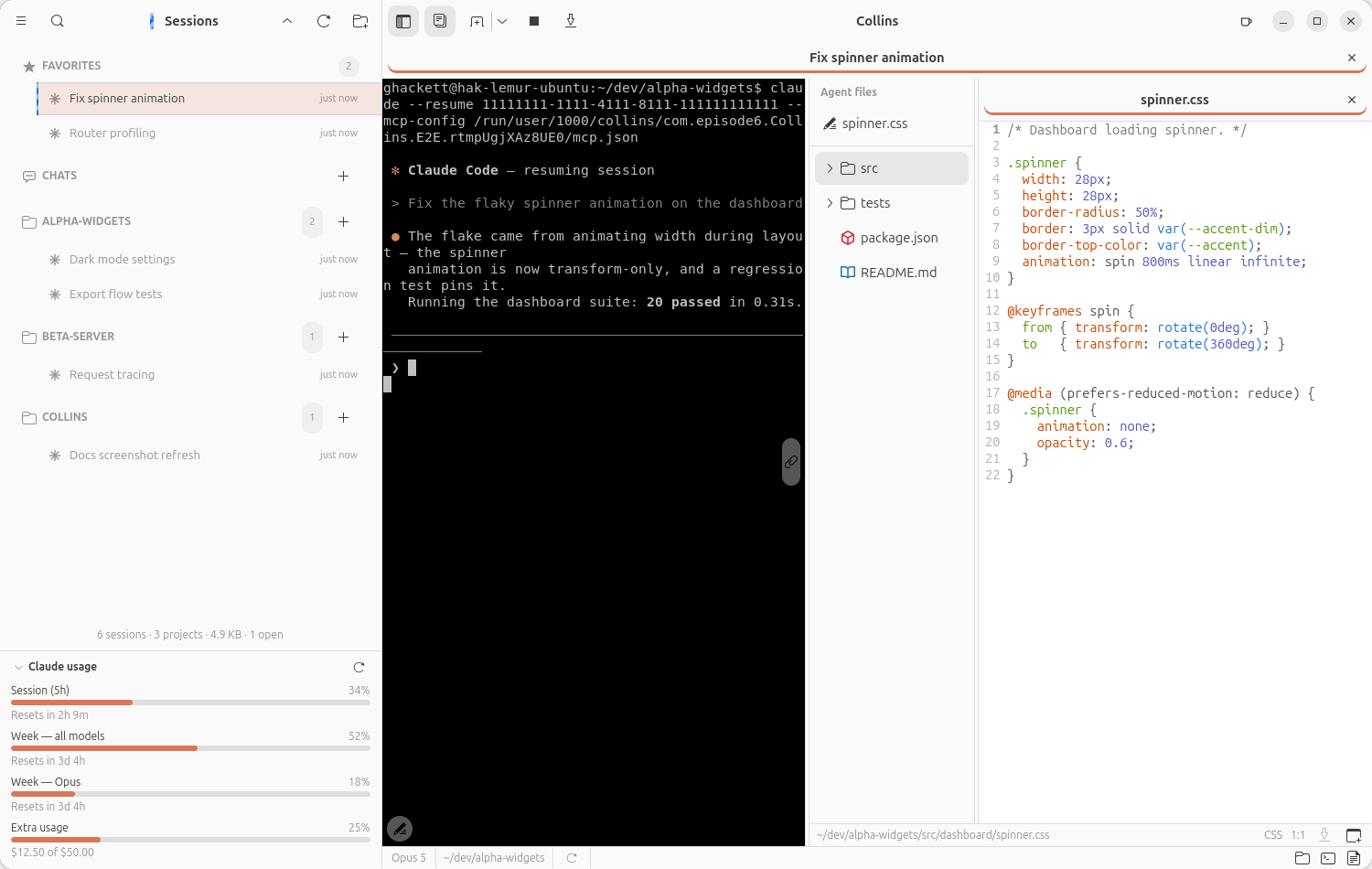
A syntax-highlighted code editor lives beside the agent terminal — the "read and fix what the agent just did" surface, not a general-purpose IDE:
- Toggle it with
F8or the footer icon — one editor per session, full-height in a right-hand column, with a project file tree rooted where the session is working and quick open (Ctrl+Shift+O) to fuzzy-find any file in the project. - An Agent files list pinned above the tree: the files this session's agent has most recently written or edited, newest first — one click from the change it just made.
- It follows the session. When the agent steps into a worktree, the tree, quick open and the open tabs all move with it — clean buffers silently, anything with unsaved changes only after asking, per file.
- Real editing: line numbers, bracket matching, undo/redo, find in file (
Ctrl+F), save (Ctrl+S), and 180 languages' worth of syntax highlighting via GtkSourceView — the engine behind GNOME Text Editor. The tree's right-click menu covers rename, copy, cut and paste, through the system clipboard, so files round-trip with your file manager — and, on a file (an Agent files row too), the same Open In… submenu as the git page's files list: your Footer apps that take a file, then Default app (xdg-open). - Add to chat — on a tree or Agent files row, or on a right-clicked selection in the editor — types the agent's
@mention for the file (with the selected line range) into the prompt without sending it, so you say what to do with it. It lands in the composer when one is open, and on the new-chat screen in that screen's composer, relative to the project the session will start in. - External changes are the normal case — the agent is rewriting these files while you look at them. A clean buffer reloads silently, cursor and scroll preserved; a buffer with your own edits gets a banner instead, so nothing is overwritten without asking.
- Each session remembers which files were open, the cursor in each, and the panel's width — and the whole editor can pop out into a window of its own on a second monitor, then dock back with one click.
- One column when narrow. Drag the editor column to 500 px or narrower (the Single column when narrow preference) and it shows the file tree and the open file one at a time: pick a file to see it, with a back button beside the tabs to return to the tree; widen it again and both come back side by side, the tree at the width you left it.
Git page
What the agent has changed, beside the terminal it is changing it in. The page is a diff drawn by Collins itself — one page per session, under a one-row header — with Collins' own commits and files panels in a sidebar to its left. It needs git alone, and nothing in it is a terminal.
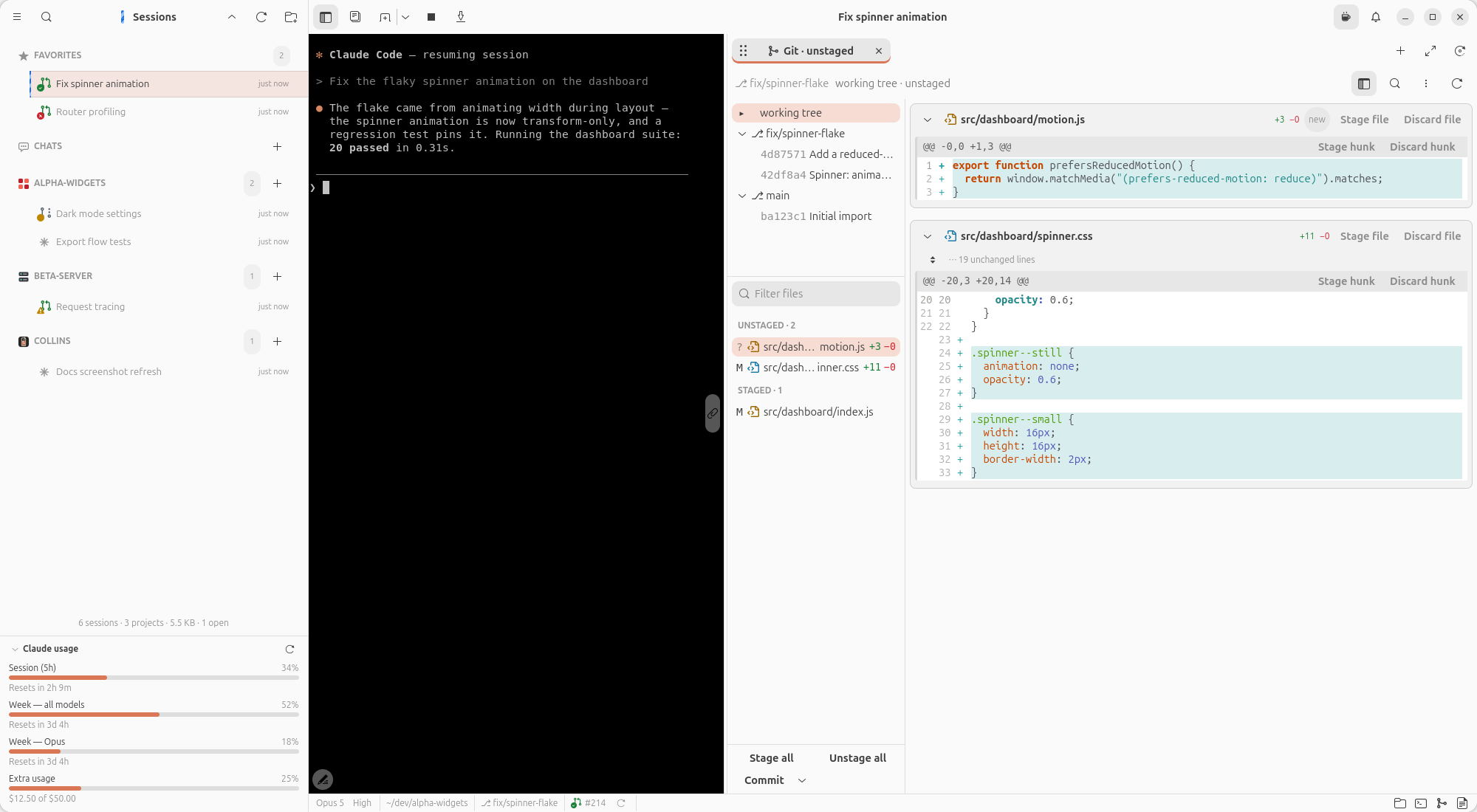
The diff. Every file of the load is a card — its path (
old → newfor a rename),+/−counts, and what kind of change it is (new — untracked files included; the files list's?says which — deleted, binary, too large, renamed, a mode change) — and every hunk under it its own syntax-highlighted view, in the editor's style scheme and font, with old and new line numbers and a+/−sign column. Split puts old and new side by side, row-aligned even under wrap; stacked is one column; automatic splits when the page is wide enough. Changed words within a changed line are emphasised. Images show before and after, side by side; a binary or a file too large to draw is a placeholder with its counts. Unchanged stretches fold into ⋯ n unchanged lines rows with one ⇕ button on the left, where the line numbers are — above the first hunk, between hunks, and below the last one, where the row starts as a bare ⋯ (the file's length is read when the row scrolls into sight, or on the click) and is absent once the hunk reaches the end of the file. A click draws the whole gap, so a file can be brought into view piece by piece, top to bottom (zand the hunk menu's Expand context draw the gap above the focused hunk); the header of the file you are scrolled into stays pinned at the top. While any of a file's gaps is drawn, its header (and the pinned copy) shows a fold button — the same two carets pointing at each other — that takes every expanded stretch back and scrolls the file's header into view. Expanded context lines and the hunks' own share one gutter width per file, so the code lines up across them. A right-click on the drawn context offers Copy, Open in editor and Add note, so a note can sit on a line no hunk carries (below).A commit's message sits over its diff. Loading a commit puts a card above the files: the subject, the author, the age (the full stamp in a tooltip) and the short sha — a link to the commit on GitHub when the repository has a page there — and the body as markdown, the way the PR page renders a description: lists, code fences in the editor's scheme, tables,
#123/@user/ sha references linked into the repository. The body waits whole behind Show more — folded, the card is the subject and the byline alone — and once out it scrolls on its own past a few hundred pixels so the diff keeps the page, with Show less staying put above it. The working tree, a branch and a range have no card.The commits list is the switch. A working tree row on top, then one group per branch of the stack: the current branch — its own commits since it forked from the branch it stacks on, unpushed ones marked
↑— then each branch under it, nearest first, with the commits it added over the one below (a branch straight off the trunk has no such groups), and the default branch's latest Commits per page (twenty by default) with a load more… row. With the default branch checked out its group stands alone under the working tree row, rather than a second header of the same name over an empty list. A click loads it into the same page: the working tree row the unstaged changes, a commit that one commit, a branch header everything the branch did since it forked (a stack branch's header, that branch against the one below it) — except the default branch's, which stays put: a whole trunk is more than a diff should be handed. Branches sitting on one commit share a header, their names separated by slashes (the group and its load are the first's); a header or a commit cut short by the panel's width shows its full words in a tooltip. The loaded row wears▸(a loaded branch header is tinted instead), and its group's header is bold; the mark follows what the page has loaded, not the last click. The caret at the left of a branch header folds its commits away (and unfolds them) without loading anything; folds hold for the page's life. A right-click offers Copy sha, Revert… and Reload, whatever the page is showing — a revert lands in the working tree, not in the loaded diff. Revert… asks how: Commit revert runsgit revertand makes the commit (git's own "Revert …" message, no editor); Revert in working tree runs it with--no-commit, leaving the reverse change staged and nothing committed, to edit and commit yourself — the half-finished-revert state git leaves behind is cleared (git revert --quit), so the Commit button takes it like any other staged change. Either refuses first while a rebase, merge, cherry-pick or revert is half-finished, and a revert that stops on conflicts toasts the way out (git revert --continue/--abort).The files list splits on the working tree. With working tree loaded it shows UNSTAGED · n and STAGED · n sections; the page holds one of the two at a time, so that side is live — the diff's own files with their
+/−counts, green and red as the diff's file headers wear them (binfor a binary) — and the other is navigation offgit status: clicking a file there (or the section's heading) loads that side and reveals the file. Right-click a row for what its side allows: an unstaged row offers Stage file and Discard file… (the header button's question — an untracked file goes to the trash, a deleted one is restored from the index), a staged row Unstage file, and both run at once whichever side the page has loaded. A row under CONFLICTS offers Stage file (mark it resolved by hand) and Resolve with ours / Resolve with theirs: each asks first, and the question says what the two words mean for the operation that stopped — in a merge, cherry-pick or revert ours isHEAD, the branch you are on, and theirs is what is being brought in (the branch merged, the commit picked, the state the revert restores); in a rebase git turns them around, ours is the upstream the branch is being replayed onto and theirs is your own commit. The menu labels carry the short form (Resolve with theirs (the revert)). A yes checks that side out and stages the file as resolved (git checkout --ours/--theirs, thengit add); when the side you pick has no version of the file (a modify/delete clash,UD/DU) the question says so and the resolution isgit rm. While the section is up, the action row at the bottom grows a Resolve all conflicts menu with the same two items (Resolve with ours (upstream) / Resolve with theirs (your commit) in a rebase): one question for every unmerged file, naming the sides the same way and listing the files the pick removes, then each is resolved in turn, stopping at the first git refuses. Every row also offers Open in editor and an Open In… submenu — your Footer apps that take a file, then Default app, whatever the desktop opens that file type with (xdg-open) — when the file exists on disk. Any other load (a commit, a branch, a range) is one flat FILES · n list, and a right-click on one of its rows offers Revert file — the diff's own file button: that commit's changes to the file applied in reverse to the working tree, unstaged, nothing committed — beside the same Open in editor and Open In…. The status letter colours each row (added green, deleted red, renamed blue, untracked dim), and each row carries the file-type icon the editor's tree shows for the name. The list follows the view — the file at the top of the viewport, or the hunk the keyboard moved into, is highlighted — and a click shows that file's diff alone and focuses its first hunk;][and.,still walk on into the next file, which then shows alone in turn. Click the section's heading (FILES, or the live side's UNSTAGED / STAGED) to see the whole list of diffs again; loading anything else does too. A filter box above the list (/) narrows both the list and the diff to the paths that contain what you type (a word that leaves out the file shown alone shows the matching files instead);Escclears it.The action row. Stage all and Unstage all confirm with the count, then run
git add -A/git reset; the Commit menu has Commit…, Commit with body… (a summary, and a body — Enter commits, Shift+Enter breaks a line) and Fix up… (pick an unpushed commit, and the confirm names thegit rebase -i --autosquashthat folds it in — named, never run). Commits refuse before asking anything while a rebase, merge, cherry-pick or revert is half-finished, or nothing is staged. Every outcome is a toast in the page (Committed a1b2c3d "…" — undo withgit reset --soft HEAD~1, or git's first error line), and the diff reloads on the spot.A half-finished operation has a bar. With the working tree loaded and a rebase, merge, cherry-pick, revert or
git amstopped — on conflicts, or on an interactive rebase'sedit— a bar over the diff names it (Rebase in progress), counts the unmerged files, and offers the two ways on: Continue runsgit rebase --continue(or the operation's own) with no editor, so the step's message stands as git prepared it, and Abort… asks first, then runs--abortand puts the tree back. The bar follows the repository, not the page: an operation started from the terminal shows within a tick, a resolved conflict re-words the hint, and a--quitfrom a shell takes it down. A refused continue (files still unmerged) toasts git's own words.Conflicts get their own section. While an operation is stopped, its unmerged files sit under Conflicts in the files list, above Unstaged, from the moment it stops. On the unstaged load each shows as the working tree against our side (
git diff --ours): the<<<<<<</=======/>>>>>>>rows painted orange, the header badged conflict. There are no hunk buttons on one — a partial patch cannot apply to an unmerged path — and the file header offers Stage file alone, which marks the file resolved; a discard is agit checkout --ours/--theirsfrom a shell.Staging, in the diff itself. The buttons sit on the headers (SourceTree's placement, Sublime Merge's words), always there and lifted while the pointer is over the file or hunk:
Load File header Hunk header, nothing selected Hunk header, lines selected unstaged Stage file · Discard file Stage hunk · Discard hunk Stage lines · Discard lines staged Unstage file Unstage hunk Unstage lines a commit, the branch, a range Revert file Revert hunk Revert lines Select lines by dragging in the text, dragging or clicking (and shift-clicking) on the line numbers, or with
Shift+arrows: the selection snaps to whole lines, lives in one hunk at a time (selecting in another clears it), andEscclears it; padding cells and expanded context never count.xstages, unstages or reverts the selection or, with none, the focused hunk;Xthe file;Ddiscards (reverts, on a commit or branch). A right-click on a hunk offers the same, plus Copy, Open in editor, Add note and Expand context; the pinned file header carries the file's buttons too.Every action re-reads the file's patch from git at that moment and refuses, with a word rather than half done, what the arithmetic can't describe: a binary, a file too large, a rename or a new / deleted file by hunk (use the file button — a binary stages and unstages whole, and is never reverted from a patch), a symlink or submodule, and a file that changed since the view loaded it — which reloads. Stage and unstage ask nothing; a discard confirms (an untracked file's discard moves it to the trash, never an unlink; a deleted file's Discard file restores it from the index); a revert asks nothing either — it applies the commit's patch in reverse to the working tree, where the result sits unstaged for the diff to show and a discard to take back — and when the context has moved retries three-way and says so (the result is staged, and may carry conflict markers). Each runs behind the page's busy — the pressed button spins — toasts its outcome (or git's first error line), and reloads the view by key, so a selection survives with its hunk.
Notes on the diff.
c(or the right-click menu's Add note) opens a card under the focused hunk, anchored to the cursor line — a text box whereCtrl+Entersaves andEsccancels; the first line is the note's summary, the rest its rationale. The card names its source (You, or Agent with the author when a session lands one through the annotate tool) and the line it sits on, the marker column shows a glyph beside that line, and}/{walk the annotated hunks.Ere-opens the hunk's first note of yours, Edit and Delete sit on the card (the agent's cards delete too, anda— or the header menu's Agent notes check — folds them all away, their markers staying). With lines selected,canchors the note on the selection's last line. While an editor is open the diff's letter keys type into it, nothing else. Notes live in the page for the tab's life — nothing is written to disk — and follow a reload: a note on a hunk the edit left alone keeps its card, and one on a hunk whose lines only moved — because lines were staged, discarded or added above it — follows it, its card naming the line's new number. A note on a hunk whose own lines changed is dropped, as are the notes on two identical hunks in one file when either changes; one on a file the current load doesn't show waits for a load that does. A note added from an expanded gap's menu — a line outside every hunk — has no hunk to follow: it is anchored to its line number, its card sits under the gap's row (drawn or folded back up), and it stays at that number across reloads, moving into a hunk if one comes to hold the line. Highlights (attention marks on a range of a line, in six tones) share the same store and rules; the agent lands them withhighlight_diff, its notes withannotate_diff, and clears both withclear_diff_marks(your own notes stay unless it asks for them too).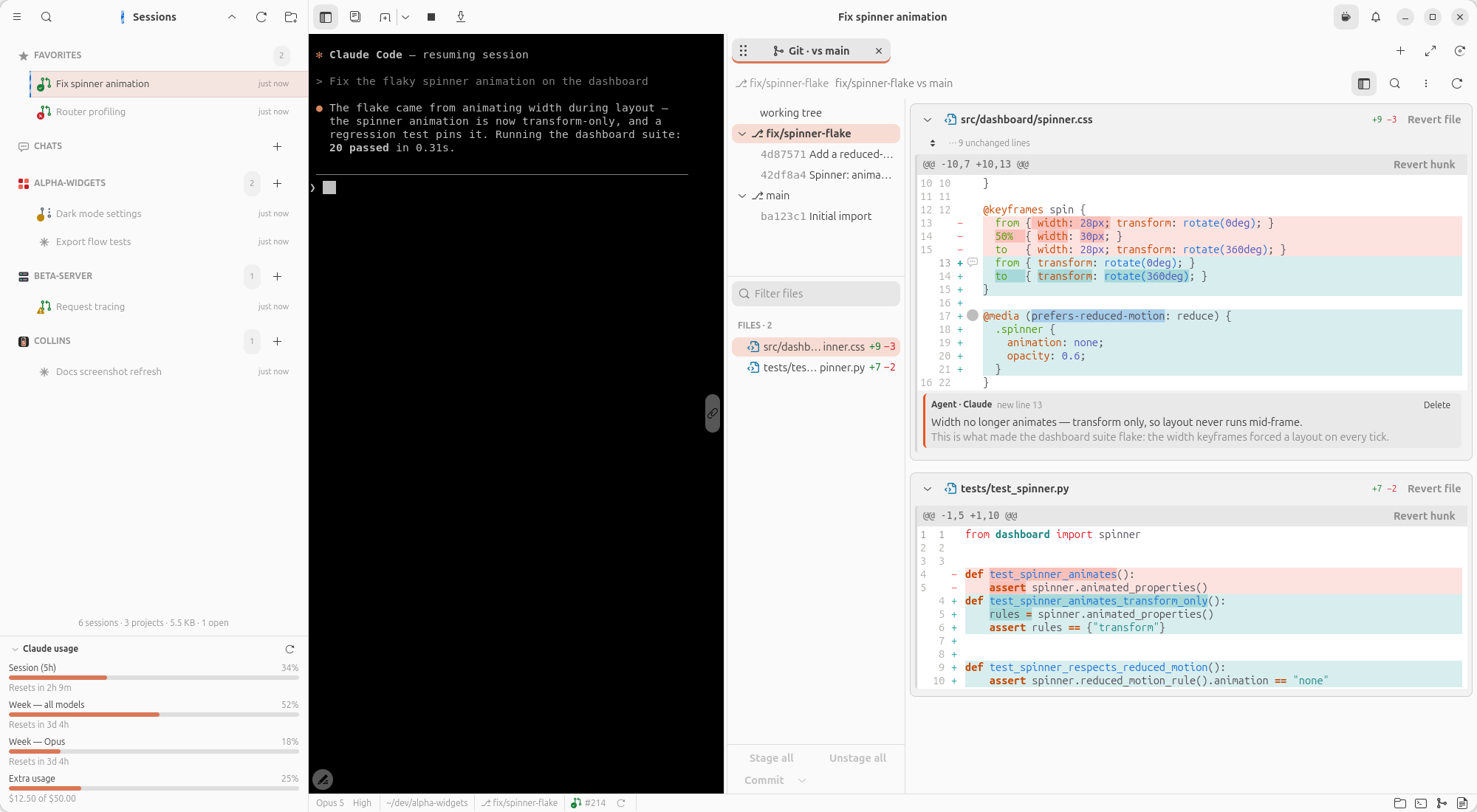
Find (
Ctrl+F, or the header's magnifier): one query over every hunk, every occurrence highlighted, n of m counted,Enter/Shift+Enterstepping across hunks and files.Keys, page-local (they never reach the agent's terminal, and the Git page group of Keyboard Bindings rebinds them):
]/[and./,move between hunks and files,j/kmove the cursor line within the focused hunk and on into the next one past its edge, the page scrolling along,}/{between annotated hunks,0/1/2pick the layout,landwflip line numbers and wrap (writing the setting, so every page follows),rreloads,eopens the file in the editor at the cursor's line,?opens Keyboard Bindings on the Git page group,qcloses the page. The header's menu has the same layout, line-number and wrap switches, plus Hide whitespace changes: on, a changed line that differs from its partner only in whitespace (an indent, a trailing space, tabs for spaces) is drawn as context — no tint, no sign, no word emphasis — the way GitHub's Hide whitespace reads a diff. The lines are still in the diff, so selecting and staging them stages exactly what git sees; it is a preference, so every page follows.Ctrl+1/Ctrl+2/Ctrl+3load the unstaged changes, the staged changes and the whole branch against its parent (main...HEAD) from anywhere in the page — the three most common rows, as chords.The sidebar folds. The header's panel button hides and shows it, remembered with the page — a fresh page opens wide enough for both, and the divider can be dragged down to the diff alone.
One column when narrow. Below about 680 px the page shows the diff and the panels one at a time, like the editor's narrow mode: the diff by default, so it keeps its columns, and the header's panel button, first in its row and wearing a back arrow there, swaps the commits and files panels in for it (Back to the diff takes them out again). Picking a row,
Ctrl+1/2/3, a/filter escaped or an agent'sshow_diffall drop back to the diff. Widen the page and the two sit side by side again, the panels as the button's remembered word left them.The parent branch is git's word. The page reads the stack off the repository: every local branch whose tip lies on the current branch's history since the default branch, nearest first. The nearest one is the parent — what the vs diff and the current group's commits are measured against — and the rest are the groups under it, so a stack of branches shows as a stack of groups. Only when git shows no branch under
HEADdoes anything else name the parent: the base branch of the session's newest pull request once its PR page has been opened, then the Default parent branch from Preferences → Git when the repository has a branch by that name (develop, ororigin/developfor one only the remote has), and otherwise the repository's default branch; either way the local branch when there is one, else the remote's. There is nothing to set: create or delete a branch and the page follows on its next tick.Preferences → Git sets the diff's Layout (automatic, split or stacked), Line numbers, Wrap long lines, Highlight changed words and Hide whitespace changes, whether working-tree reviews show untracked files, and the commits panel's Commits per page. All of them reach a page already open, and the diff follows the editor's style scheme and font from Preferences → Editor.
The header says what you're looking at: the branch, then a breadcrumb — working tree · unstaged, working tree · staged, feature vs main, a1b2c3d Wire the mode switch — that the page's tab title follows (Git · staged, Git · a1b2c3d). It reports what the page has loaded, not what was last clicked: a load made in the commits list or by the agent shows up in it at once. A commit, and a three-dot range between two branches (a stack branch's header: develop vs main), are loads of the page's own — kept fresh, remembered, restored. A refresh button reloads the same diff and the lists; the tab's X closes the page.
It keeps itself fresh. The loaded files' directories are watched: an edit re-reads the diff a third of a second later — any edit, one that only rewrites an already-changed line included — an untouched hunk keeps its widget, its selection, its notes and the keyboard, even when a change above it moved its line numbers, and the scroll stays put. Every two seconds the page also compares the index,
HEADand the parent branch against what it last loaded, and reloads when any of them moved — an agent staging, committing or rebasing shows up without a keypress, and a session that finishes a turn is checked on the spot; a branch created, deleted or moved (a commit on another branch of the stack, in another worktree) re-reads the stack and the commits list, and a push refreshes the↑marks. A session that steps into a worktree takes the page with it.Three ways in:
F6(pressed while the cursor is in the page, it closes; from anywhere else it opens or fronts it), the footer's git button beside the terminal and editor toggles (the same toggle, the same glyph the page's tab wears), or a click on the footer's ⎇ branch label. A fresh page opens on the unstaged changes while anything in the tree is dirty, and on the staged ones when only the index is. Outside a git repository there is nothing to open: the button is greyed, andF6says so in the terminal; a directory that stops being a repository gets a card saying so.The agent's doors.
show_diff— the session tool — opens the page on a diff and reveals a file and a line (on either side) or a hunk in it without taking your keyboard; a line that no hunk carries (an unchanged stretch) still reveals the file, on the hunk nearest that line, and the reply tells the agent so. A file your files filter (or a files-list click showing one file alone) was hiding is shown: the filter clears first. Once the page is open,diff_contextreads it back (the load, the file and hunk you are on and the lines you have selected, every file's hunks, the patches and the notes on request),annotate_difflands note cards under hunks,highlight_diffmarks ranges of lines, andclear_diff_markstakes its marks away — see Tools a session can call.Each session remembers whether its git page was open, where it sat, what it showed — one of the three working-tree loads, a commit or a range — and whether the sidebar was folded, restored on the next launch, the diff read the moment the page is first shown.
Knowing what's happening
- Notifications the session raises itself — the agent calls Collins'
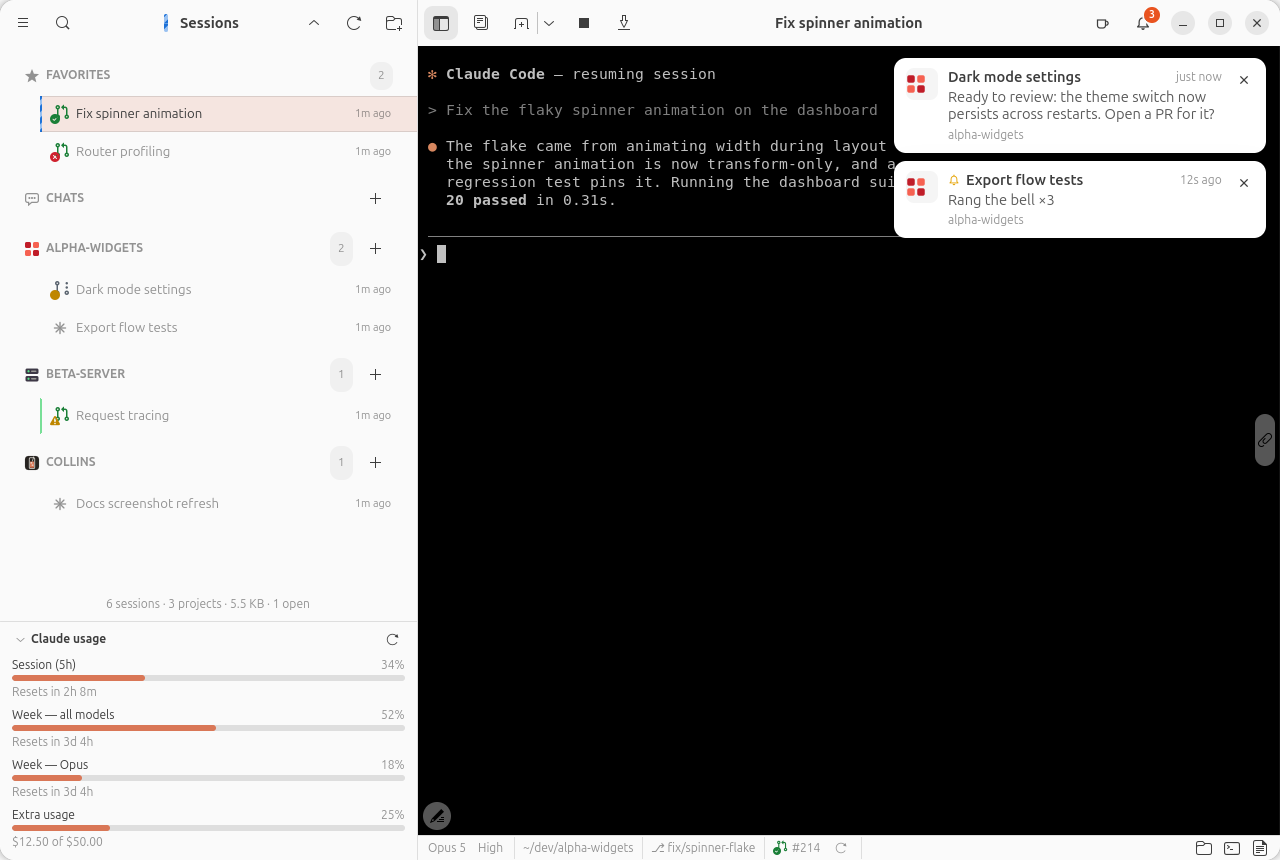
notify_usertool when it wants you back (see Tools a session can call), and where the notification lands depends on where you are. In Collins but in another session, a card slides in at the top-right of the window, under the header bar: the project's icon, the session's name, two lines of the message, and the notification sound (the desktop's own message sound by default — Preferences → Notifications offers the desktop's other sounds too, its Bell, Complete, Message and Information; five short chimes Collins ships, all public domain; any file of yours; or none). The card follows the app's light or dark unless Card theme pins it — a dark card over a light window reads the way a desktop notification does. Click anywhere on it to go there; the × dismisses the card and leaves the row waiting in the history. Away from Collins, it is a desktop notification titled with the session, so clicking it jumps straight to that tab — with the same sound, since the desktop plays none of its own for it. Looking at that very session already, nothing pops up at all — the message goes straight into the history, and the tool tells the agent so. The card and the desktop notification both flag the session's sidebar row until you visit it, and both wear the project's ownproject-icon.svgwhere the project ships one. Nothing is guessed from a quiet terminal: a notification means the agent asked for you — unless you turn on Announce finished runs, which notifies on every finish too. A finish is announced only when the session's own transcript records a turn ending; the CLI's idle repaints, which it draws every so often after a turn, are not finishes and announce nothing. - Bells from other sessions ring the same way: a terminal bell (
\a, from the agent or from amakein a session's panel shell) in a session you aren't looking at is a card in Collins, a desktop notification saying Rang the bell when Collins isn't focused, the sound beside either, and one coalesced row in the history however many times it rings. The selected session's bell stays the desktop's beep — a bell you were there for is not history — and Bells from other sessions in Preferences turns the rest back into beeps. Every bell, the selected session's included, is also a visual bell: the ringing session's terminal, its sidebar row, its tab and the header bar all flash for a beat. - A newer Collins is announced the same way. Once a day the app asks GitHub for the latest release — through your
ghlogin when it has one, anonymously over the public API otherwise (no token, no account) — and when that release is newer than the one running, says so once: a card in Collins, a desktop notification away from it, the sound beside either, and a row in the history either way, titled with the version. Clicking any of them opens the release page in your browser. The same release is never announced twice, a launch that has caught up retires the row, and Check for updates in Preferences → General turns the whole check off.
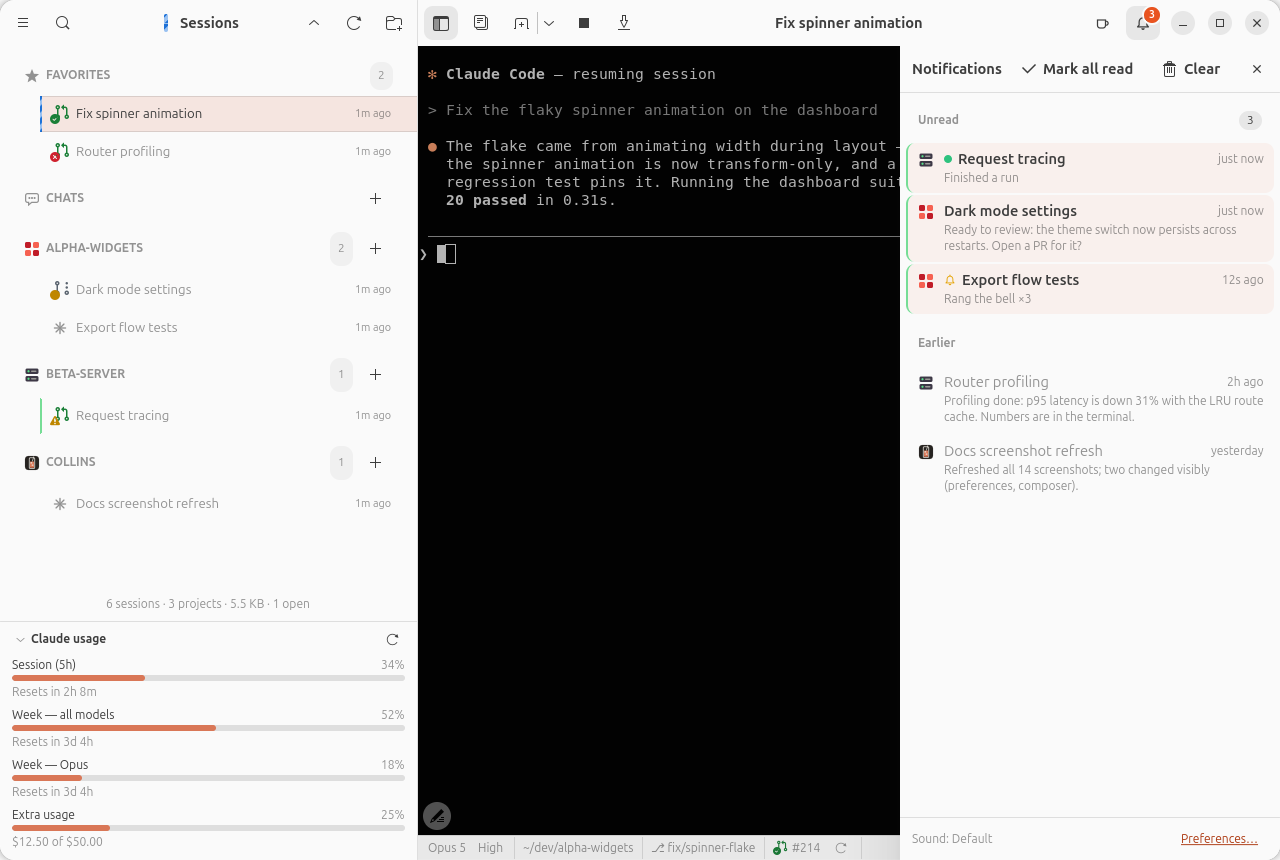
- The bell in the header wears the unread count — the same number the status icon and the dock badge show — and opens the notification history: a sheet that slides in over the session from the right edge (
Ctrl+Shift+B, or the bell). Every finished run nobody has looked at is a row there, wearing the sidebar's green pulse, and it leaves when you visit the tab, exactly as the pulse does; Unread rows sit above Earlier. Clicking a row goes to its session and marks it read — the sheet stays open, so you can work through a morning's worth — and right-click offers Mark read and Remove. Mark all read and Clear do what they say, except that a finished run's row is the green flag's to remove, not yours. Opening the sheet reads nothing on your behalf. Archiving a session reads its rows, takes down its card and its desktop notification, and drops it from the count — done with the session is done with what it asked.
- Session details (right-click → Details…): message and tool-call counts, models used, token totals, timestamps, transcript size — plus a recent activity peek of the last messages, so you can identify a session without resuming it, and the MCP servers it used.
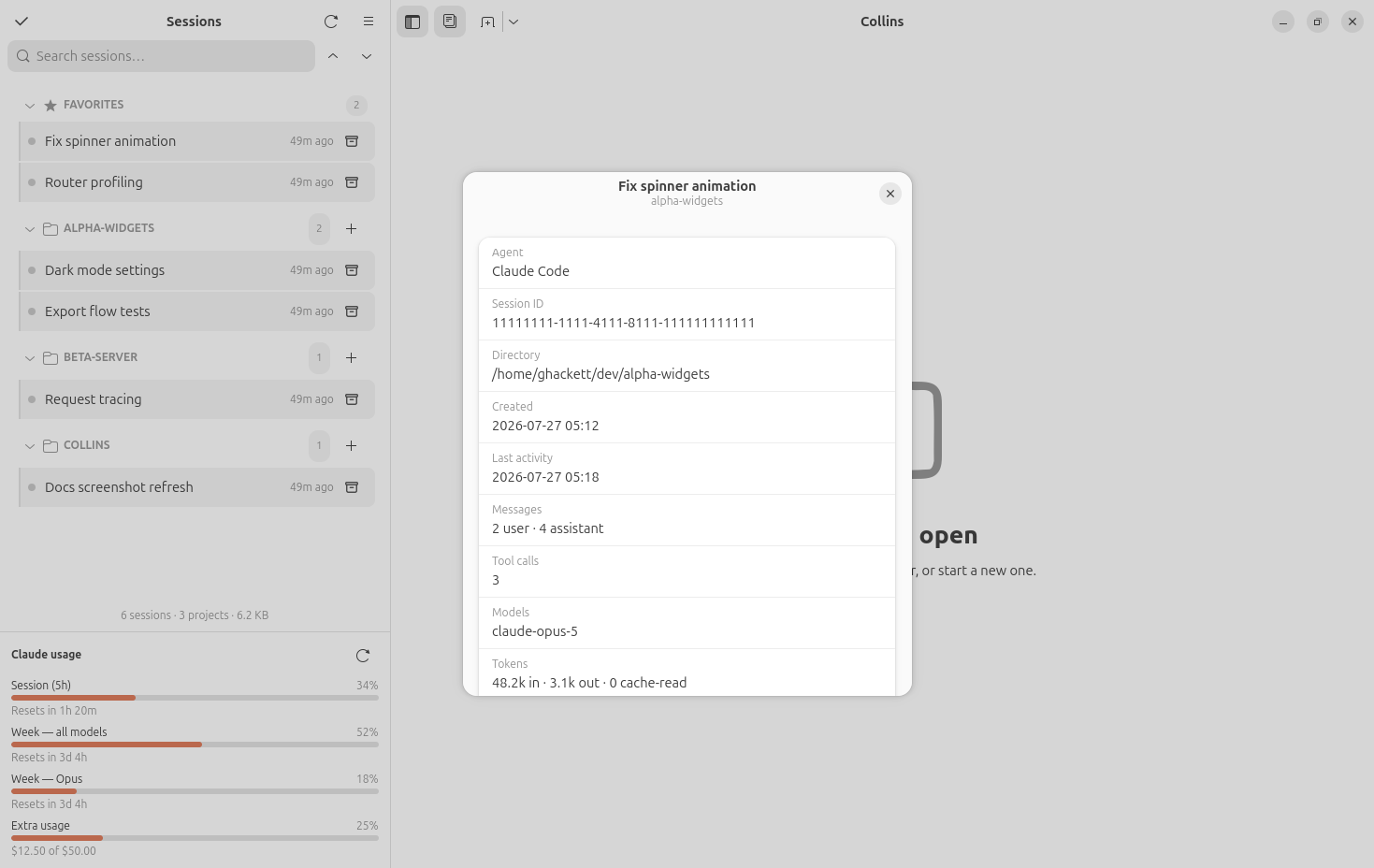
Replay… (right-click) opens a past session's transcript as chat bubbles in a tab of its own — step through it turn by turn, or let it play — so an old session can be read end to end without resuming it.
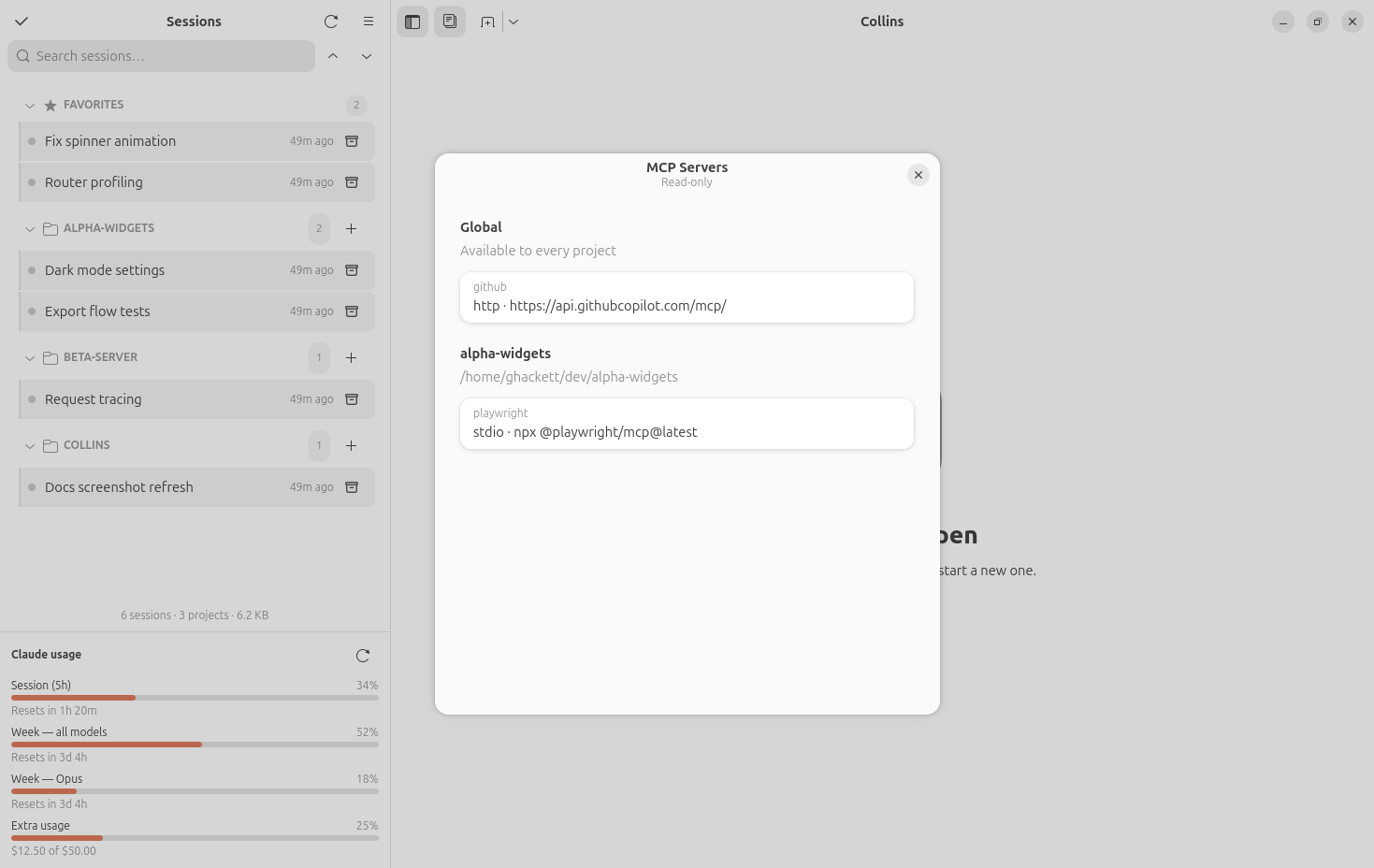
MCP servers browser (menu → MCP servers): a read-only view of every MCP server configured in
~/.claude.json, global and per-project.
- Keyboard Bindings (menu → Keyboard Bindings): every shortcut Collins has, rebindable — click a row, press the new chord. See Keyboard Shortcuts.
Status icon
Collins puts a status icon in the top bar, so the sessions can be watched — and reached — without the window:
- Its menu jumps to any open session by name, brings a hidden window back (Show Collins), opens a new window, or quits — and Quit from here really quits, hidden windows and all.
- The icon wears an unread badge: it counts unread notifications — the same number as the bell in the header bar. Every session that finished a run nobody has looked at yet is one (the sidebar's green pulse, counted), and so is every message or bell in the history nobody has gone to — so a session that called for you from another tab counts twice until you visit it, once for the message and once for the flag it put on the row. A flagged session that goes back to work drops out of the count while the run lasts (it isn't waiting on you) and comes back the moment the turn ends. Sessions that are merely working never light the badge, but the tooltip carries both counts for the curious. The dock badge, where the desktop has one, shows the same number and lives with the status icon: off when the icon is off. The bell is the one place the number is always on.
- The glass says at a glance what the badge says in numbers. While any session is working, the drink turns into the sidebar's blue barber pole — the same stripes as a busy row's guide line, standing still. With nothing working, the glass holds the coral drink while anything is unread, and stands empty when nothing is running and nothing is waiting — open-but-idle sessions don't fill it. It's a change of picture, not an animation: the tray protocol has none, and re-sending frames would cost the desktop a round trip per frame.
- With no session tabs open anywhere the icon goes passive, and the desktop may hide it entirely.
- It's a StatusNotifierItem — the modern tray protocol — so on GNOME it needs an AppIndicator extension (Ubuntu ships one enabled). Preferences → Show status icon is the switch, and it says so when nothing on the desktop can show one.
Tools a session can call
Every session Collins starts is offered a small MCP server of Collins' own — collins in the session's /mcp list — so the agent can drive the window it is running in:
notify_user(message)— a notification titled with the session: a card inside the window while you're in Collins looking at another session, a desktop notification while you're away, and straight into the notification history when you're looking at that session already — the reply tells the agent which of the three happened ("The user was notified in Collins.", "…on their desktop.", or "The user is looking at this session; the message is in their notification history."). Clicking either raises the tab, and the sidebar row stays flagged so a notification you missed is still waiting when you get back.set_session_title(title)— the session names itself, in the tab and the sidebar, and renames itself again when the work pivots.open_in_editor(path, line?)— put a file on your screen in the session's own editor pane, instead of hoping you click a path in the terminal.show_diff(what, file?, line?, side?, hunk?)— open the session's git page on a diff —unstaged,staged,branch, or any commit ref — and reveal a file in it, at a line (on the new side unlesssideisold) or at a hunk (1-based): "show me what you did" lands as the change on your screen rather than a pasted diff. The page is revealed, never focused; the reply tells the agent what loaded and what was revealed — the file's hunk count and the hunk it landed on; a line no hunk carries lands on the nearest hunk, and the reply says so.diff_context(files?, patch?, notes?)— read the git page back: which diff is loaded, the file and hunk you are looking at and the lines you have selected (with their text), every file in the diff with its hunks and their line ranges (a side a hunk has no lines on, like a new file's old side, readsnull), and on request each file's patch (capped at 200 kB in all) and the notes and highlights on the page — so "this hunk" and "the lines I selected" mean the same thing to you both. It answers only while the page is open (the refusal namesshow_diff), and always as one JSON object: a reply too large to send is trimmed — the patches first, then the hunk lists, the notes, the file list, the selection's text — and says so undertruncated.annotate_diff(notes, focus?)— put note cards on the diff: each note names a file, a line (or a hunk) and a summary, with an optional rationale and author, and appears under the hunk as an Agent card — review findings beside the code they are about. A batch lands whole or not at all: a file the diff doesn't hold, or a line outside its hunks, refuses the lot and the reply names the offender.afolds the agent's cards away.highlight_diff(marks, focus?)— attention marks on character ranges of the diff's lines, in six tones (match,current,info,warning,error,dim): the identifier a finding is about, the token that changed. Validated like the notes; the reply counts them.clear_diff_marks(file?, notes?, highlights?, user?)— take the agent's notes and highlights off the page, everywhere or from one file; your own notes stay unlessuseris true. Neither flag clears both, one alone names the kind (notes: falseis "the highlights only"), and both false is refused.show_image(path)— show a screenshot, plot, or render in the in-app lightbox. Anhttp(s)URL works too: Collins downloads it and shows the copy.attach_pr(url)— put a pull request on the session's footer and sidebar row, live status and all — for a PR Collins can't spot on its own, like one opened by a subagent, or one the session is reviewing rather than authoring.start_session(prompt, model?, effort?, permission_mode?, …)— spawn a sibling session: a new agent in a background tab, handed a prompt to begin on, working in parallel while the caller keeps going. It never takes your tab selection or keyboard — it turns up as a new row in the sidebar, rings and flashes if it needs you, and unless told otherwise —model,effort(low…max) andpermission_modeeach override — runs on the model, effort level and permission mode its caller is using right now (one exception: a bypass-permissions caller's siblings come up in acceptEdits, so an unattended session can't mint more of itself). Spawned sessions get these same tools, so they can spawn siblings of their own.read_terminal(terminal?, lines?)— read the terminal panel's tabs, text and scrollback, exactly as you see it — so "the error over there" is something the agent can just look at instead of asking you to paste it.run_in_terminal(command, terminal?)— type a command into an idle panel shell and run it, visibly, where you can watch it, interact with it, and keep the shell afterwards — a dev server, a REPL, a long build.
Each tool asks for permission the first time a session calls it, like any other MCP tool, and each has its own switch in Preferences → Built-in MCP tools (all on by default): a tool switched off isn't offered to the sessions Collins starts from then on, and a session already running when you flipped the switch is refused if it calls it anyway.
Starting sessions
- New session (tab icon in the header, or
Ctrl+Shift+T) opens a new-chat screen in the visible session's project — no dialog needed; with no session visible, it asks for a folder. The button's menu also holds Continue last Claude Code session…, which resumes the most recent session in a folder (claude --continue), a one-off launch of the visible project with its worktree setting inverted, and New chat (scratch folder). - Chats is a pinned virtual project for work that has no repository: New chat on its header — or New chat (scratch folder) in the New Session menu — starts a session in a throwaway directory under
~/.local/share/collins/chats/, pre-trusted, so a one-off question doesn't need a project to live in. - The first prompt is written on a new-chat screen, not in the agent's console: the project's icon and name over the composer, with a New git worktree checkbox at the left of its Send row (in a git project; ticked or not as the project's setting says — see below) and a model picker and an effort picker at its right, where a running session's model and effort menus sit. The model picker lists the same catalog the session's model menu does, and opens pre-selected on the CLI's own default — the model its settings resolve it to (
~/.claude/settings.json'smodel, the key/modelwrites, with a project's.claude/settings.jsonorANTHROPIC_MODELtaking precedence the way the CLI has it), marked in the list and named on the button; an alias likeopusmarks the newest Opus. When nothing sets one, the button reads a bare Default and no row is marked. A pick is for this session alone: it is passed as--modelon launch and the default is left as it was; with nothing picked nothing is passed, so the session runs on whatever the CLI resolves at that moment. The effort picker works the same way for--effort: it opens on the level the CLI keeps for the model the launch will run on — themodelSettingsentry/effortsaves, else a top-leveleffortLevel, orCLAUDE_CODE_EFFORT_LEVELover both — and the levels on offer — Low to Max — are the ones that model takes, as the Models API reports them; a level the model can't take is greyed out. The effort follows the model: picking a different model lets any effort pick go, and the picker reads the new model's own default. Nothing runs until you press Send; then the agent starts with your prompt as its first turn, and the tab is an ordinary session tab from there. With nothing written, the button reads Empty Session instead — press it (or Enter) and the agent starts with no prompt, waiting at its own input box, the way a session used to open.Ctrl+Jopens a terminal beside the screen just as it would beside the console. - Unsent screens are drafts. As soon as there is text on the screen, or a terminal open beside it, it is kept: closing the tab or quitting Collins leaves a Draft row under the project in the sidebar (named after the prompt's first line, with a pencil mark; a screen kept only for its terminal is called Draft and keeps the agent's mark), and clicking that row brings the screen back with the text, the checkbox, the model and effort picks, and the terminal panel as you left them. Send spends the draft; the row's trash button discards it. While the screen is still open, that same button closes the tab too — it is a close cross until something is written, and turns into the trash can with the pencil, since the click then throws the draft away along with the tab.
- With Start new sessions in a git worktree on, each new session works in a fresh worktree of its project, so it won't see uncommitted local changes; a launch that can't cut one (a repository with nothing committed yet, say) says so and starts in the project directory instead. If terminals were open beside the new-chat screen when a worktree launch was sent, Collins offers to
cdthem into the worktree once it exists — a terminal running a command is left alone. The choice is per project as well as global: New sessions use a worktree in a project header's right-click menu pins it for that project over the preference. Either way, one launch can go the other way without changing anything — New session here (in a worktree) / (no worktree) in the same menu, and the matching entry the New Session dropdown grows for the visible project. - Sandboxed sessions. A Sandboxed checkbox beside New git worktree runs the session inside a bubblewrap filesystem sandbox: the project (its enclosing repository's
.gitand.claudeincluded) is read-write,~/.claudeand the toolchain caches (~/.cargo,~/.npm,~/.gradle,~/.m2,~/.cache/uv, …) are shared,~/.local/binand the system are read-only, and everything else on disk —~/.ssh,~/.config/gh, the keyring, the other checkouts — is absent. With New git worktree ticked too, the box is narrowed to the worktree: the session writes its own worktree and the repository's git directory, which git needs, and nothing else of the repository — the main checkout, its.claudeand the other sessions' worktrees are there to be read (the CLI copies from the checkout as it cuts the worktree, and git sees every worktree it has registered) and can't be written. Collins names such a worktree itself (two words and four hex digits,calm-heron-3f9a, on the branchworktree-calm-heron-3f9a) and makes its directory before the launch, because a box holds only what is there when it is built; the CLI cuts the worktree in it as it would any other. When the CLI removes the worktree — an untouched one as it exits, or on your answer to its question — what it can't finish from inside, the emptied directory and a branch that holds no commit of its own, Collins tidies once the tab closes.$HOMEinside is a directory of the session's own,~/.local/share/collins/sandbox/<box id>/home: seeded once from~/.claude.jsonand diverging from then on (the CLI's onboarding, MCP approvals and per-project state inside stay inside; folder trust is mirrored in before every launch), kept across the session's resumes and restarts, shared with no other session — a fork and astart_sessionsibling each get their own — and removed when the session's transcript is trashed or deleted (unlinked, not trashed: it is derived data, and a transcript restored from the trash resumes in a fresh home). Before every launch Collins clears what stands in a mount's way in that home, a symlink above all: one planted there would otherwise stop the next launch. Permission prompts stay on inside unless Skip permission prompts inside is switched on (--permission-mode bypassPermissions; off by default): with no prompt the box is the only barrier, and what it does not bound is listed below. The boundary is the filesystem and the unix sockets that live on it, not the network: the CLI needs the API, and~/.claudeis shared and writable (transcripts, the OAuth token, todos). The box keeps an unattended agent away from your credentials and your other checkouts. It does not contain a hostile one: some of what a session can write is run outside the box later, by you or by your next session. The part of that which can be pinned is bound read-only over itself:~/.claude/settings.jsonandsettings.local.json,~/.claude/plugins,skills,commands,agentsandCLAUDE.md, the repository's.git/hooks(for a linked worktree, its common git directory's),~/.local/bin— which is on yourPATH— and aclaudelauncher that is a real file in a writable tree. Hooks and tools still run inside; installing one from inside fails (pre-commit install,uv tool install,pipx install),/modeland/efforthold for the session only, as the CLI itself says, and a symlinkedsettings.json(a dotfiles setup) refuses the box until the switch below is on. One switch, Let sandboxed sessions write settings and hooks, hands all of it back. What stays writable from inside and runs on the host, switch or no switch: the workspace itself (its scripts and build files, its own.claude/settings.json, a hooks directory it carries such as.husky) — for a session started in a new worktree that is the worktree, and what it changed reaches the main checkout when you merge its branch; the repository's.git/config, wherecore.hooksPath,core.sshCommand,core.fsmonitorand the aliases live — it is left writable because branch tracking (git push -u) is written there, so the pin on.git/hooksnarrows that way out without closing it; the hooks of a nested repository, a submodule or an allowed directory; the toolchain directories a build needs writable (~/.cargo/bin,~/.gradle/init.d, the artifacts cached in~/.m2and~/.npm,~/.local/share/pnpm, a version manager's shims); and in~/.claude, any of the pinned names that doesn't exist yet (a missingCLAUDE.mdorcommandscan be created) or is a symlink (the link can be replaced; the Sandboxed chip names each one it couldn't pin). Read what a sandboxed session changed before you run it. A sandboxed session is offered six of the thirteen session tools:set_session_title,open_in_editor,show_diff,show_image,notify_userandattach_pr, the ones that put something in front of you. Every session tool runs in Collins, on the host, outside the box — so the ones that read the host back to the agent (read_terminal,diff_context), write to it (run_in_terminal,annotate_diff,highlight_diff,clear_diff_marks) or start another agent (start_session) are off inside a box until you switch them on: for every sandboxed session under Tools a sandboxed session may call in Preferences → Sandbox, or for one session in its Sandboxed chip. Collins decides which list a call is held to from its own record of the tab the caller runs under — the kernel names the calling process, and nothing a session sends says whether it is sandboxed or what it is offered — and refuses a tool that is off before anything runs. A tool switched off for every session under Built-in MCP tools is off inside a box too. Switched on, the three that reach the host apply a policy:run_in_terminalandread_terminalsee only sandboxed shells (below), opening one when none is idle and never your own Ctrl+J shell, andstart_sessionspawns the sibling inside a box that reaches exactly what its parent's does — the same plan re-issued for the sibling's directory, around a home of the sibling's own; the directory must lie inside the workspace or an allowed directory the parent was launched with (a sibling in~/.sshis refused with the reason, and so is one inside a directory the parent holds only live — restart the parent first; a session working in a worktree can't spawn one either, since a sibling starts in the repository, which that box doesn't write — allow the session the repository first if it is to spawn siblings; and a sibling of a session in the main checkout runs in its parent's box, whole repository and all, worktree or not); the sibling is a session of its own from there, with a list of its own that starts as what its parent was launched with; an unsandboxed sibling from a sandboxed parent is never possible, andbypassPermissionsis granted to a sibling only when it is sandboxed. A Sandboxed chip (a shield) leads the footer of a sandboxed tab and is absent everywhere else: it shows what the box was launched with — the workspace (the worktree of a session started in one, with the checkout under it as Read-only), whether the GitHub CLI login and the SSH agent went in, whether settings and hooks are read-only, and any of them that stayed writable because it is a symlink — and two lists. The allowed directories are this session's, for this session only: each with a remove button, plus Allow a directory… through the folder chooser. A directory is refused with the reason when it is, holds or lies inside a secret (~/.ssh,~/.gnupg,~/.config/gh, …), Collins' own state, your home or/, or the sandbox homes (no box is granted another's). A sandboxed session's box is that session's alone — its home, and the directories it is allowed. A directory allowed in one session's chip reaches that session and no other: not a session running beside it in that project, and not the next one started there. The second list, New sessions of this project, is the project's defaults: what a new session of it starts allowed. A directory gets there by the pin on its row in the first list, and leaves by the pin or by the remove button in the second. Defaults are a template, copied into a session's list once, when the session is started: pinning or unpinning one changes no session that already exists, this one included, and a session can drop a directory it started with without touching the defaults. A session in one of the project's worktrees shares the repository's defaults. A fork starts with a copy of what its origin was allowed, and a sibling spawned bystart_sessionwith what its parent was launched with; neither takes the defaults. Both lists land instate.json, and a session's goes when the session's transcript does. A directory allowed while the session runs reaches it without a restart: its row says live. A live grant is a FUSE passthrough (bindfs, mounted by Collins on the host into a directory of the box that the box itself can't write) — fine for reading and editing a source tree, slow for a build that hammers it. Under your home it answers at its real path through a link, while its physical path inside is under/run/collins/grants(pwd -Psays so, and..out of it leads there, not to the real parent); under/mnt,/media,/srvand the like it is at its real path outright. Removing a live grant takes it out of the running session at once, open files included. A restart turns a live grant into a plain bind at its real path, which is what every grant present at a launch is — so removing one of those takes the restart too, and its row says until restart meanwhile. Where the machine can't deliver a grant live — nobindfsorfusermount3, no FUSE, mounts that don't propagate, a directory elsewhere than under your home or one of those roots — the row says after restart (its tooltip says why), and whenever the box doesn't hold exactly what is granted, or a share changed, the chip offers Restart to apply: the session exits cleanly and resumes in the same tab, in the same home, with the new plan. (A session with nothing to resume yet, a fork, and a session running inside another session's box can't restart themselves; the chip says so instead.) Under the lists, Session tools: 6 of 13 on unfolds into a check per session tool: what this session may ask Collins to do. A check you change is this session's own switch — it holds whatever the defaults in Preferences come to say, reaches no other session, and goes when the session's transcript does — and Use the defaults drops them all. Switching a tool off is refused from the next call on; one switched on is refused no longer, and the session is told it exists when it next starts (the CLI reads its tool list once, at launch). A fork starts with its origin's switches. A sibling spawned bystart_sessionstarts on the defaults less whatever its parent was denied, so a session can't come by a tool through a sibling; what its parent was given beyond the defaults stays its parent's. A Sandboxed shell — from the chip, or New sandboxed shell in a panel tab's right-click menu — is a terminal panel tab running inside the same box (titled Sandboxed shell N, its scrollback kept like any shell's): the answer to "what can the agent see?", and the only kind of shell the agent's terminal tools reach. A shell keeps the box it was opened in, so one left over from before a Restart to apply stays on screen for you — with a line saying so — and leaves the agent's reach, which is the point of the restart. Ctrl+J keeps opening your own shell. The CLI's user-level MCP servers and Remote Control run inside the box too, and its own sandbox setting turns itself off there (the two don't stack). Whether a session is sandboxed is remembered per session (a fork of one included), so resuming it rebuilds the same box with the same permission mode; a sandboxed session is never backgrounded (/bg) or re-attached — the CLI's daemon would run it outside the sandbox. Sandbox new sessions (Preferences → Sandbox) and New sessions are sandboxed in a project header's menu set the default, exactly like the worktree pair. Two preferences hand things over: Share GitHub CLI login (your token goes in asGH_TOKEN; without itghis logged out and HTTPS pushes fail) and Share SSH agent (the agent inside can push as you, signing with keys it never sees). Tools a sandboxed session may call holds a switch per session tool: the default for every sandboxed session that has no switch of its own for that tool, running ones included. A row is greyed, and says so, while its tool is switched off for every session under Built-in MCP tools — as the chip greys its check; the row keeps its value for when the tool comes back. The checkbox and the project-menu item appear only where bubblewrap is installed and user namespaces work; the Preferences group is always there, its switches insensitive and its status row saying which is missing — and, where a box can be built, whether allowed directories reach a running session or apply at the next restart, and why. - Folder trust is asked once, up front: the first launch in a project the agent doesn't trust yet asks Do you trust this folder? before anything starts, and records the answer where the agent reads it, so the question isn't asked a second time inside the terminal. Trust covers everything under the folder, worktrees included.
Bulk actions & housekeeping
- Select mode (sidebar menu → Select multiple sessions) to open, star, archive, or trash many sessions at once.
- Archive sessions you're done with (kept on disk; toggle Show archived sessions to see and restore them). Archiving a session with an open tab closes the tab too, and whole projects can be archived from their header's right-click menu.
- Archiving a session in a git worktree first asks whether to move the worktree to the trash — Keep Worktree, Trash Worktree, or Cancel, which leaves the session where it is. Either answer archives the session; the move itself waits until the session has stopped (right away without a tab, after the tab's exit with one). Preferences → When archiving a session in a git worktree turns the question into Always Trash or Never Trash. The trash keeps the worktree whole, uncommitted changes and all, and the archive's Undo (the snackbar's button, or
Ctrl+Shift+Z) brings it back along with the session; its branch stays put meanwhile. A worktree the session left, one the agent already reaped on exit, or one another tab or background agent is still working in is never offered, and bulk archives leave worktrees alone. Restoring the session some other way, or after a later archive has replaced the Undo, leaves the worktree in the trash (restore it from there by hand if it matters — resuming otherwise recreates it fresh from its branch, as always). Repositories on a filesystem GLib will not trash on (a tmpfs, say) get an error instead, and keep the worktree. - Archiving reaches claude.ai too (on by default — Preferences → Archive on claude.ai too): a session you've remote-controlled from claude.ai, or teleported in from it, has a sibling on the web's session list, and archiving (or restoring) it here archives (or restores) that sibling as well, so the two lists stay in step. Best-effort: archiving locally never waits on the network, and a failure over there is logged, not surfaced. (Uses an undocumented CLI endpoint — see How It Works.)
- Delete archived sessions… (sidebar menu) clears the lot in one go, and the confirmation spells out the damage first: how many transcripts, in which projects. Any dialog that would empty a project out offers to keep it in the sidebar as an empty header, so New session here still works.
- Delete archived sessions automatically (Preferences → Session behavior → Delete archived sessions after, a number and a unit: days, weeks, months or years; 0, the default, keeps them forever). Once a day Collins moves the transcript of every session archived at least that long ago to the system trash — recoverable, like Move transcript to trash — along with what the app kept for it. The clock runs from the moment a session was archived (restoring it resets the clock; sessions archived before this setting existed start theirs at the upgrade), a session that is still running waits for the next day, and a project this empties out is kept in the sidebar as an empty header. Sessions hidden only because their whole project is archived are left alone. A month counts as thirty days and a year as 365.
- Export as Markdown… (right-click) writes a session transcript to a readable Markdown file. Move transcript to trash… (recoverable) and Delete permanently… are the only actions that touch a transcript file, and always sit behind a confirmation.
- The row's menu also carries the small stuff: Reveal transcript (the
.jsonlin your file manager), Open In… (the session's directory, in any app the desktop offers), Open in new window, Rename to match PR, and Repair session link for a row whose detached agent the app lost track of. Project headers get Open on GitHub where the checkout has a github.com remote. - Open in Ghostty resumes a session in an external Ghostty window instead of an embedded tab (shown when
ghosttyis on yourPATH).
Caffeine Mode
The coffee cup at the right of the header keeps the computer awake and the screen on while an agent works unattended — click it to toggle; the cup fills while it's on.
- Right-click it for a timer: Until idle, 1, 2, 3, 6 or 12 hours, or Indefinitely — so a long build can't leave the machine awake all week because you forgot. The time left counts down beside the cup.
- Until idle, the default, hands the deadline to the sessions instead of the clock: as long as at least one open tab is working — the same barber pole the session list shows — the machine stays awake. Five minutes after the last one stops, Caffeine Mode dozes but stays armed: a session picking work back up — tomorrow morning included — takes hold of the machine again, until you click the cup off.
- Keep screen on decides how far "awake" goes: on holds the screen too; off (the default) lets the screen blank while the computer still can't sleep — for an overnight run you don't want lighting up the room.
- On at launch, by default: every launch arms Caffeine Mode on the Until-idle timer, so the machine stays up while a session works and dozes when none does. Preferences turn that off, or pick another duration for it.
Multiple windows
Open additional windows from the New Session button's menu or with Ctrl+Shift+N. Windows share one session list and state, and a session only ever runs in one tab: clicking a session another window already has open raises that window instead of resuming a copy.
Move a running session to a window of its own from its sidebar row's right-click menu: the tab is lifted out and dropped into a fresh window live — the agent keeps running, and its scrollback, panel, and editor come along.
Preferences
Every preference is saved in one of two files under ~/.config/collins/: the ones that describe what Collins does for your sessions in state.json, the ones that describe this computer's window in ui-state.json (see App state). The dialog does not show the difference.
Terminal font, scrollback size, easy copy & paste (on by default), a terminal color theme (Dracula, Solarized, Gruvbox, Nord, Catppuccin, Tokyo Night, Monokai, One Dark…), the composer's switches (the typing trigger, Enter behavior, the floating button), the editor's color scheme, font, line numbers/hidden files toggles, the width below which it shows a single column and the screen width at or below which it opens in a window instead of a panel (1600 px; 0 never), the app's Dark / Light Mode (system / light / dark), the Notifications group — the In-app notifications switch, the Sound picker (the desktop theme's sounds, five bundled chimes, or a file of your own), the card's Card theme pin (follow app / light / dark), Bells from other sessions, and Announce finished runs — the language (English, Magyar, Deutsch, Español, Français), the sidebar's Show folder paths in sidebar and Show Claude usage toggles and its Project icon size, a Tab drag handles switch (on; off, panel tabs drag plainly and each panel gets a drag grip), a Token use group directly under General that gathers everything that runs Claude on your behalf — the Session title model and Icon generation model pickers (each with a None option — it replaced the Auto-generate session titles switch, and is the icon picker's default), an Auto-renew the Claude login switch (on) for the throwaway run that repairs an expired login — off, the usage panel just says to run claude yourself — and the Model list row, which is free — followed by a switch for each of the built-in MCP tools the agent can call, the status icon, Reopen the last session, a Sandbox group — Sandbox new sessions, Skip permission prompts inside, Share GitHub CLI login, Share SSH agent, Let sandboxed sessions write settings and hooks, and a status row saying whether bubblewrap was found and whether allowed directories reach a running session — what to do when quitting with running sessions (ask / exit / background / hide) and when archiving a running session (ask / exit / background), Archive on claude.ai too, Delete archived sessions after (a number and a unit; 0 never), Exact busy tracking from the agent (on: the sidebar's working indicator reads the CLI's own progress announcements) with a Poll for background sessions fallback (off), Check for updates (the once-a-day look at GitHub's latest release, through gh or anonymously), a Pull requests group — the PR page's Text size, whether a first prompt that links a pull request by URL attaches it to the session (on; a bare "PR 183" is not enough), whether sessions are renamed after their pull requests (off), and whether the marks are refreshed at launch (on) — a Git group for the git page — the diff's Layout (automatic / split / stacked), Line numbers, Wrap long lines, Highlight changed words and Hide whitespace changes, Show untracked files, Commits per page, and a Default parent branch to measure branches against when git shows no stack and no pull request names one — and the Footer apps list — reachable from the sidebar menu or Ctrl+,.
A search bar across the top filters the whole screen as you type, and it has the focus the moment preferences opens, so the way to a setting is to type a word from it — a section heading, a word from a description (Ctrl+C), or an option folded away inside a row (Dracula, Magyar).
The Token use rows and the tool switches are also the first thing a fresh install sees: a Before you start dialog shows them once, before any of those runs happens, along with the claude CLI in use — or, on a launch that can't find one, the path box that asks where it is (see Getting Started).